How to launch Meta retargeting campaigns from Wizard Flow
Launch Meta retargeting from Wizard Flow—custom audiences, product creative, and Shopify ROAS without CSV exports or manual Ads Manager uploads.
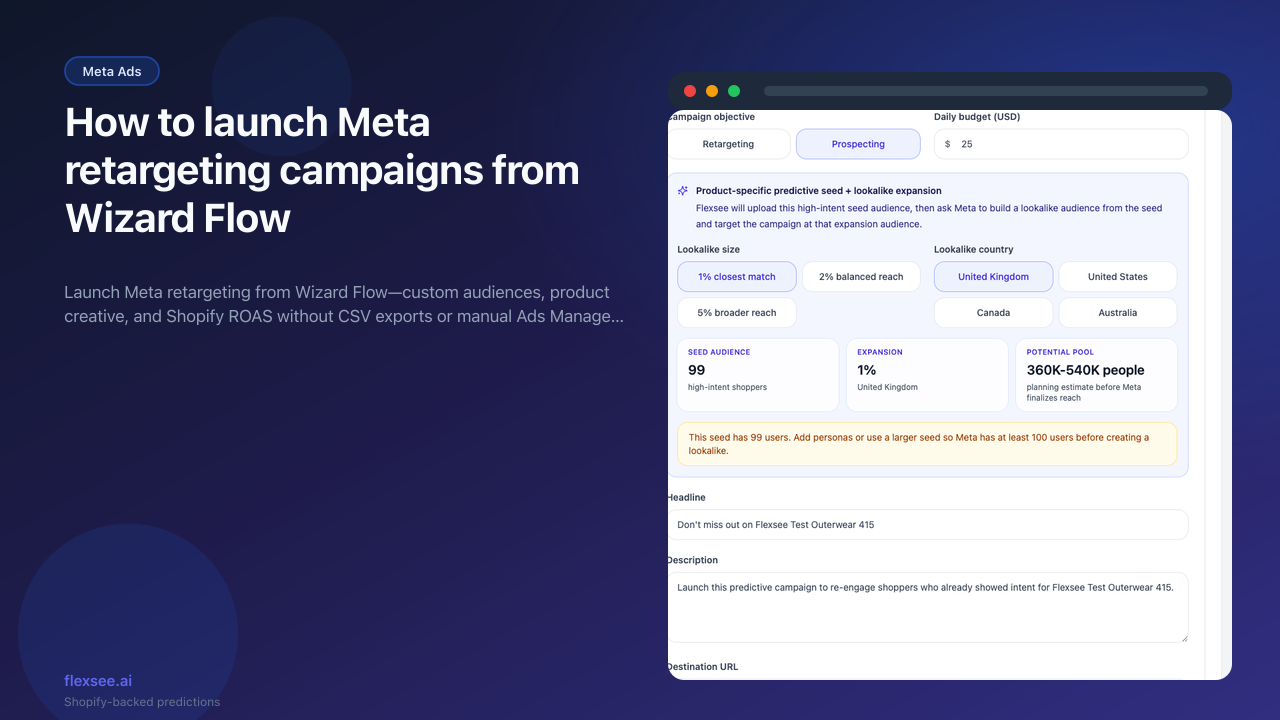
Retargeting works when the audience is narrow and high-intent, not everyone who ever viewed a SKU. Flexsee ranks shoppers from your Shopify orders and behavioral events, builds a Meta Custom Audience from that seed inside Wizard Flow, and publishes a campaign that targets that audience directly—no lookalike step, no CSV export, and no separate audience build in Ads Manager.
This guide covers the Retargeting objective only. For Prospecting with lookalike ratio and country, see How to build Meta lookalike audiences from Shopify predictions.
What you’ll accomplish
- A Wizard Flow with Meta Ads as the destination and Campaign objective: Retargeting
- A prepared Meta Custom Audience from Flexsee prediction scores (hashed identifiers uploaded via API)
- A published Meta campaign with headline, description, budget, destination URL, and Flexsee tracking on the landing link
- A way to review performance in Campaigns with Shopify-backed attribution context
Prerequisites
Before you begin, make sure you have:
- A Shopify store connected under Integrations → Datasources → Shopify with products, customers, and orders synced
- The Flexsee AI Predictions pixel enabled and Customer events → Always on (see Shopify behavioral pixel setup)
- Meta Ads connected under Integrations → Marketing Destinations → Meta Ads (OAuth to your ad account)
- A Flexsee account with permission to run Wizard Flow and publish campaigns
You do not open Models or train anything manually. Predictions run inside Wizard Flow for the product you select.
Retargeting vs prospecting in Flexsee
In Wizard Flow → Meta setup → Details, Campaign objective is a two-option control: Retargeting or Prospecting.
| Objective | Meta audience used at publish | Extra fields in Wizard Flow |
|---|---|---|
| Retargeting | Custom Audience (your Flexsee seed) | Budget, creative, destination URL, launch timing |
| Prospecting | Lookalike Audience built from that seed | Same plus lookalike ratio and country |
When you choose Retargeting, the lookalike ratio and country section does not appear. Flexsee prepares and targets metaCustomAudienceId only. Prospecting targets metaLookalikeAudienceId after Meta creates the lookalike from the same seed.
Use retargeting when you want to bring back shoppers Flexsee already scored as likely to buy this product. Use prospecting when you want net-new reach similar to that seed.
Step 1 — Connect Shopify and Meta Ads
In this step, you will confirm integrations so Wizard Flow can score shoppers and call Meta’s API.
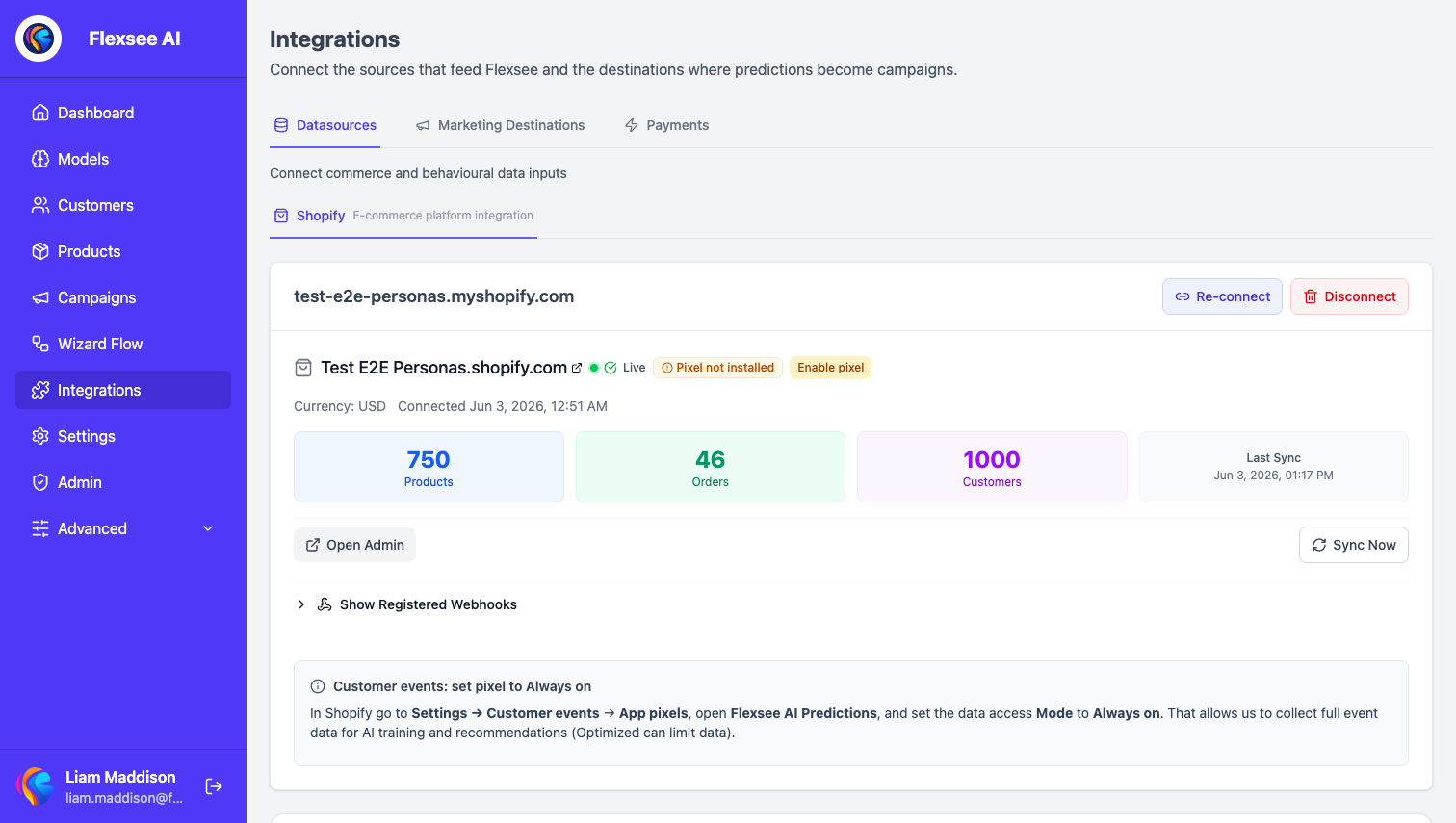
- Open Integrations → Datasources → Shopify and confirm sync is healthy (Synced, reasonable product/order counts).
- Confirm Pixel connected on the store card if you rely on recent behavioral signals.
- Open Integrations → Marketing Destinations → Meta Ads and complete OAuth to the ad account that will own the campaign.
- Note your Meta pixel is available to the integration—Flexsee uses it when creating the ad set.
Step 2 — Start a Wizard Flow for Meta Ads
In this step, you will create a flow tied to one product and choose Meta as the activation channel.
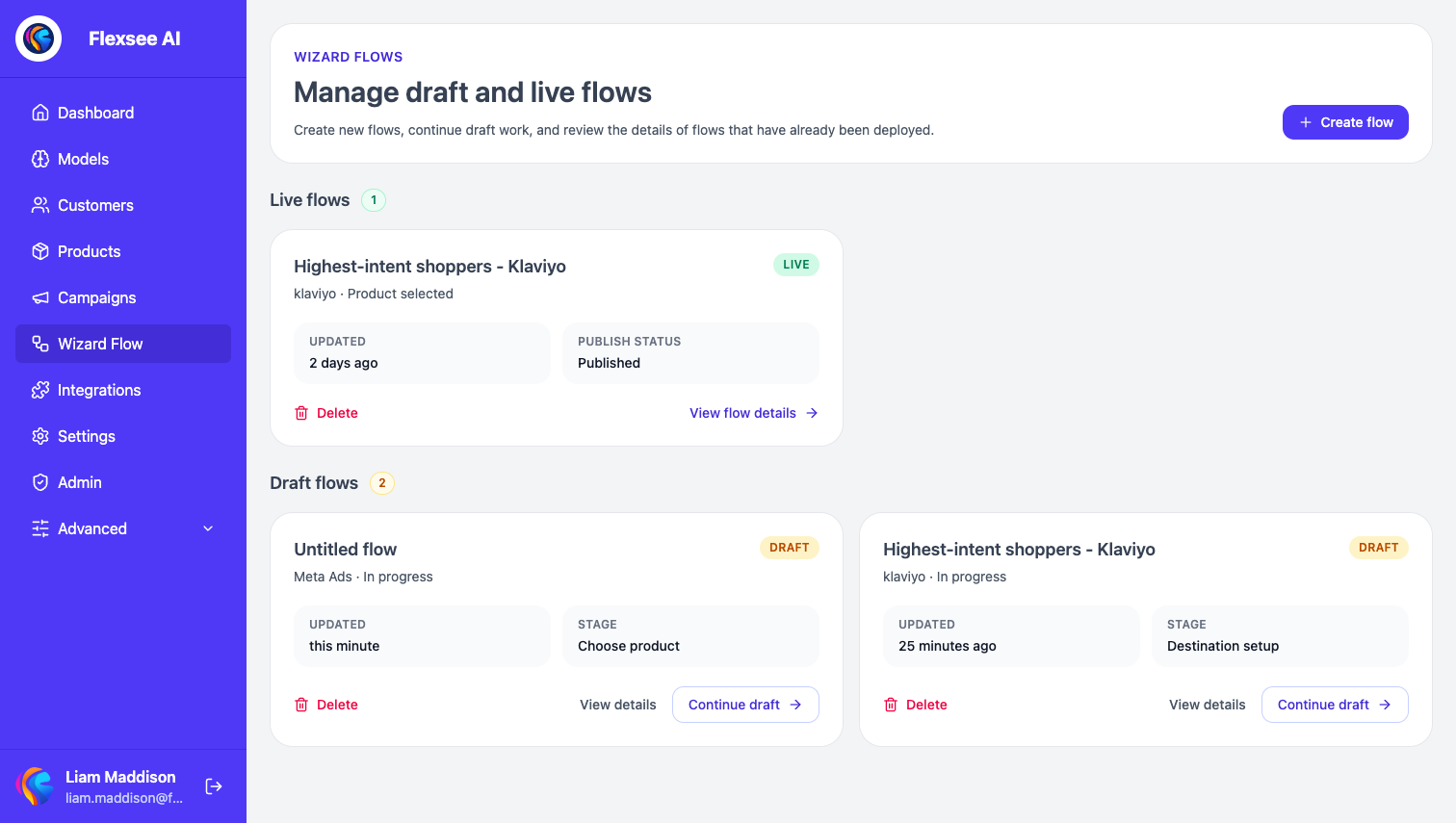
- Open Wizard Flow from the sidebar (
/wizard-flow). - Create a new flow or continue a draft.
- Pass readiness checks (Shopify sync, and behavioral minimums when shown).
- Select the product you want to retarget toward.
- Choose Meta Ads as the destination when prompted.
- On the audience step, pick a predictive segment suited to retargeting—segments labeled for highest intent or ready-to-buy fit retargeting better than broad “all viewers” style groups.
Step 3 — Set campaign objective to Retargeting
In this step, you will configure Meta campaign details without lookalike settings.
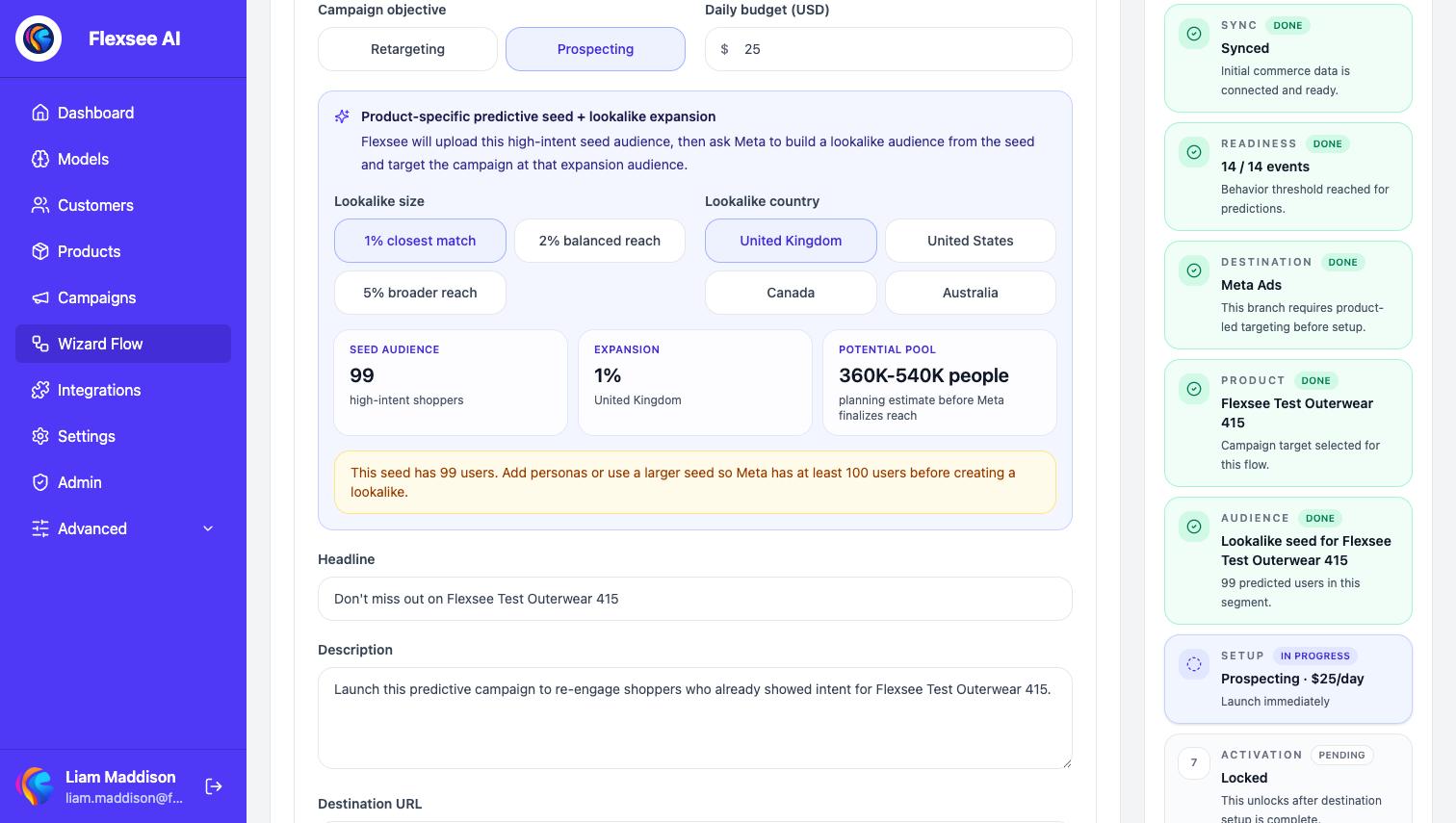
- Open the Meta Details stage in Wizard Flow.
- Confirm Audience name and Campaign name (Flexsee prefills from your flow; edit if your naming convention requires it).
- Set Campaign objective to Retargeting (not Prospecting).
- Enter Daily budget (USD)—start with a test budget you can read clearly in Campaigns after launch.
- Fill Headline and Description with product-specific copy. Retargeting creative should reference the product shoppers already showed intent for.
- Set Destination URL to the product or landing page you want clicks to reach. If the flow uses Quick Pay as the checkout route, Flexsee shows a generated Ad destination URL instead of a manual field.
- Choose Launch timing (Immediately or Schedule tonight per the selector in the flow).
You should not see lookalike ratio or country fields while Retargeting is selected—that is expected.
Step 4 — Prepare the Meta custom audience
In this step, you will upload hashed identifiers to Meta and wait for audience preparation to finish.
- Continue from Details into audience preparation (Wizard Flow moves to the preparing stage).
- Flexsee calls prepare audience, creating a Custom Audience and uploading hashed email (and optional name/phone when available) from your selected segment.
- Wait until preparation succeeds and preflight checks pass. If preparation fails, read the inline error—common fixes are too-small segments or Meta OAuth scope gaps.
- For retargeting, Flexsee does not create a lookalike at this step; the ad set will target the custom audience ID only.
Behind the scenes, publish logic uses metaCustomAudienceId when objective is retargeting, and metaLookalikeAudienceId only for prospecting.
Step 5 — Review and publish
In this step, you will confirm billing checks and send the campaign live in Meta.
- Open the Review stage: ad preview, audience summary, eligibility checks, and billing context.
- Confirm the audience count and objective still show Retargeting.
- Publish the campaign. Flexsee creates the Meta campaign, ad set (targeting your custom audience), and creative via the Marketing API.
- On success, note the campaign appears under Campaigns and in the Wizard Flow details view.
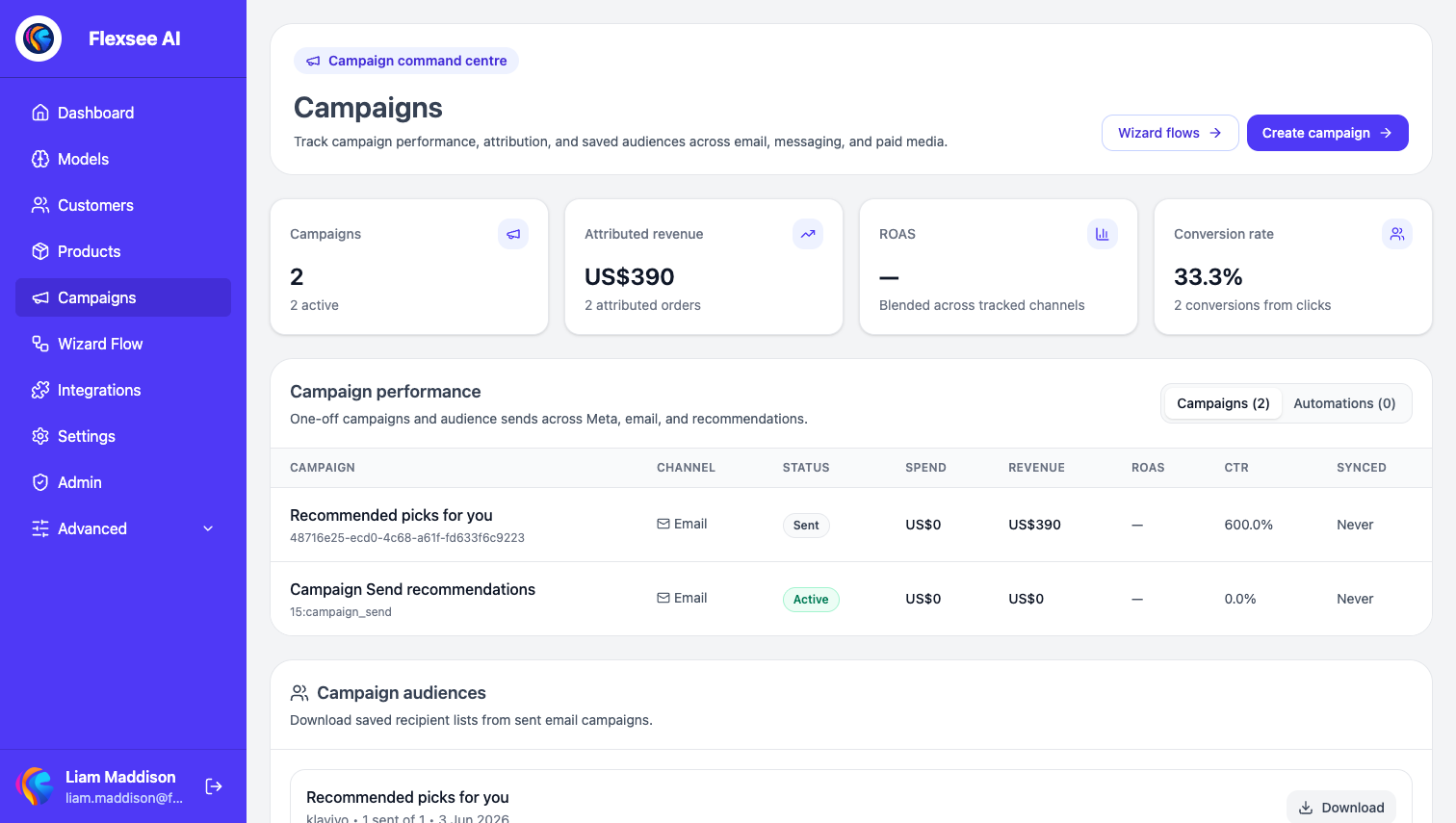
Step 6 — Measure retargeting in Campaigns
In this step, you will compare Meta spend to Shopify-attributed outcomes.
- Open Campaigns (
/campaigns) and find your published Meta flow. - Review spend, attributed revenue, and ROAS context Flexsee ties back to Shopify orders—not only Meta Ads Manager totals.
- Open the Wizard Flow details panel for live Meta metrics when cached; payment-link or Quick Pay tracking may already show in-flow even before Meta cache fills.
- Compare with Shopify-backed ROAS on the dashboard if you reconcile Meta reporting weekly.
Retargeting should be judged on incremental return from warm shoppers. If ROAS is weak, tighten the audience segment or refresh creative before raising budget.
Troubleshooting
Lookalike fields appear but I want retargeting only
Switch Campaign objective back to Retargeting. Lookalike ratio and country show only for Prospecting.
“Meta lookalike audience is not ready” on a retargeting flow
That error applies to Prospecting publish paths. If you see it on retargeting, refresh the flow, confirm objective is Retargeting, and re-run audience preparation so metaCustomAudienceId is set.
Audience preparation fails with a small segment
Retargeting still needs enough identifiable emails for Meta to accept the custom audience. Widen the segment slightly or wait for more synced customers and behavioral events.
Pixel or CAPI confusion
Flexsee publishes audiences and campaigns through Wizard Flow. Your Meta pixel is used in ad set creation as configured in the integration. This is separate from third-party CAPI identity products—you do not need a separate CSV upload for the Flexsee retargeting path.
Frequently asked questions
Does retargeting use the same seed as prospecting lookalikes?
Yes—the same Flexsee predictive segment can seed either path. Retargeting stops at the Custom Audience. Prospecting continues to create a Lookalike from that seed.
Can I retarget to a Quick Pay checkout URL?
When the flow’s checkout route is Quick Pay, Ad destination is generated for you in the Meta details form instead of a manual destination URL field.
Do I need 100 emails like prospecting lookalikes?
Prospecting enforces Meta’s lookalike minimum (Flexsee checks at prepare time). Retargeting custom audiences should still be large enough to deliver; extremely tiny lists may fail Meta validation.
Conclusion
Meta retargeting in Flexsee is a Wizard Flow path: pick a product, choose a high-intent segment, set Campaign objective to Retargeting, prepare the Custom Audience, publish, and measure in Campaigns. No lookalike configuration and no manual Ads Manager upload step.
Comments