How to build Meta lookalike audiences from Shopify predictions in Flexsee
Use Wizard Flow to upload predictive seeds to Meta, create lookalikes, or retarget high-intent shoppers without CSV exports.
Meta lookalikes only work when the seed audience reflects real purchase intent—not everyone who ever viewed a product. Flexsee trains on your Shopify orders and behavior, ranks shoppers by predicted intent, then uploads a hashed seed to Meta and (for prospecting) creates the lookalike inside Wizard Flow. You do not export a CSV or build lookalikes by hand in Ads Manager.
When you finish, you will understand retargeting vs prospecting in Flexsee, how seed size and country affect lookalikes, and how to measure campaigns with Shopify-backed attribution.
What you’ll accomplish
- A Meta Custom Audience built from Flexsee prediction scores (hashed email and optional name/phone)
- For prospecting, a Lookalike Audience created automatically from that seed via the Meta API
- A published Meta campaign whose landing URLs include Flexsee campaign tracking for attributed ROAS
Prerequisites
Before you begin, make sure you have:
- A Shopify store connected in Integrations → Datasources
- Meta Ads connected in Integrations → Marketing Destinations (OAuth to your ad account)
- Enough Shopify history and synced customer data for stable Wizard Flow scores
- At least 100 shoppers with email addresses in your seed if you choose Prospecting (Meta’s minimum for lookalikes; Flexsee enforces this at prepare time)
- A Flexsee account
How Flexsee audiences differ from a manual export
Many guides assume you will export a list and upload it in Meta yourself. Flexsee’s product path is different:
| Step | What Flexsee does |
|---|---|
| Predict | Scores customers automatically in Wizard Flow for a specific product |
| Segment | Offers preset segments (highest-intent, ready-to-buy, lookalike seed) in Wizard Flow |
| Prepare | Calls Meta’s API to create a Custom Audience and upload hashed identifiers |
| Prospecting only | Creates a Lookalike from that seed (ratio + country you choose) |
| Publish | Builds campaign, ad set, and creative in Meta with a tracked product URL |
Retargeting campaigns target the Custom Audience (people already in your seed). Prospecting campaigns target the Lookalike Audience Meta builds from that seed—Flexsee does not ask you to create the lookalike separately in Ads Manager.
Step 1 — Connect Shopify and confirm sync
In this step, you will sync store data so Wizard Flow can generate audience scores automatically.
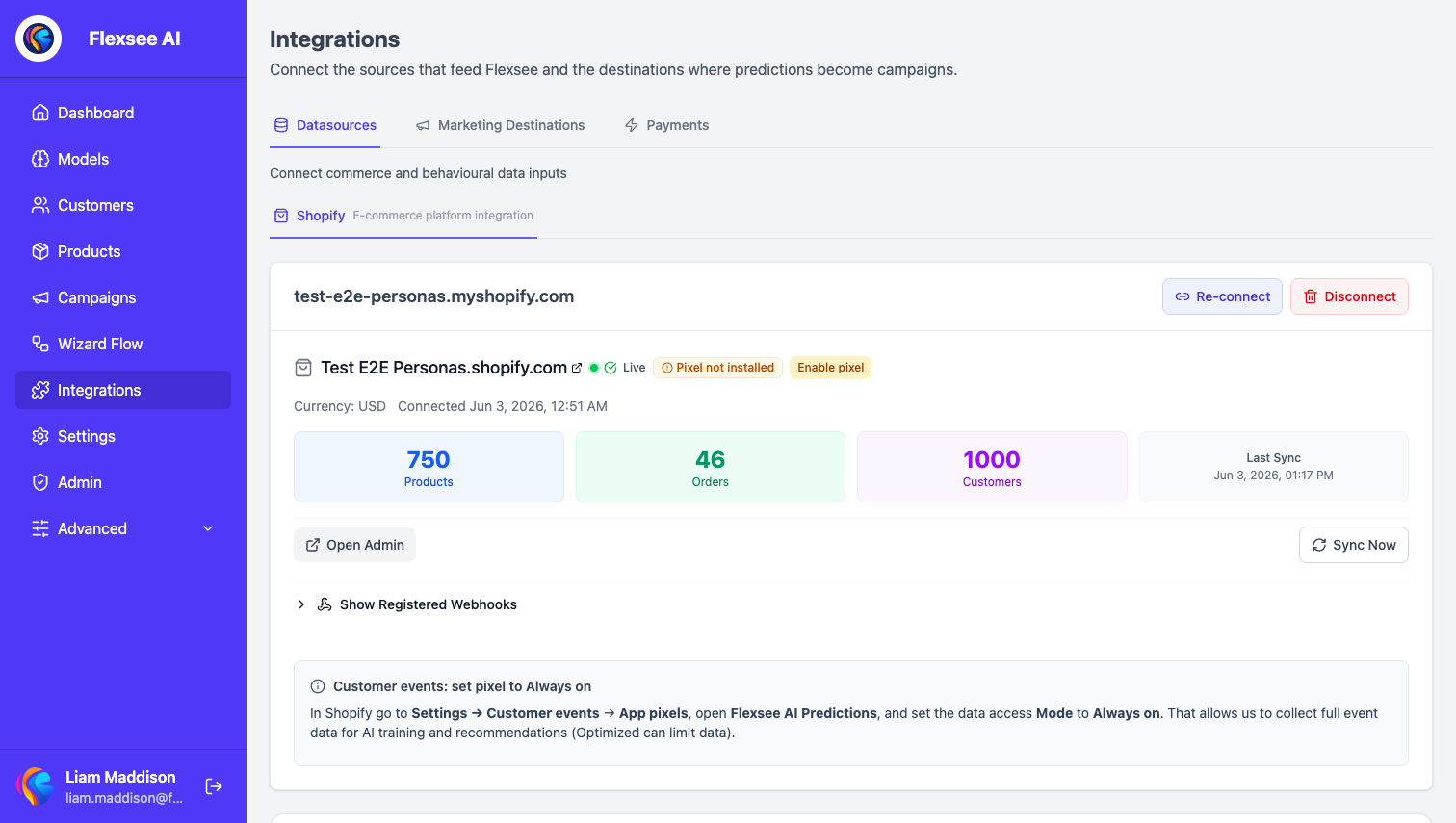
- In the Flexsee dashboard, open Integrations → Datasources and connect Shopify.
- Wait until products, customers, and orders show as synced on the store card.
- Confirm you have meaningful order volume; very new stores may need more history before Wizard Flow scores stabilize.
Step 2 — Connect Meta Ads
In this step, you will authorize Meta so Wizard Flow can create audiences and campaigns.
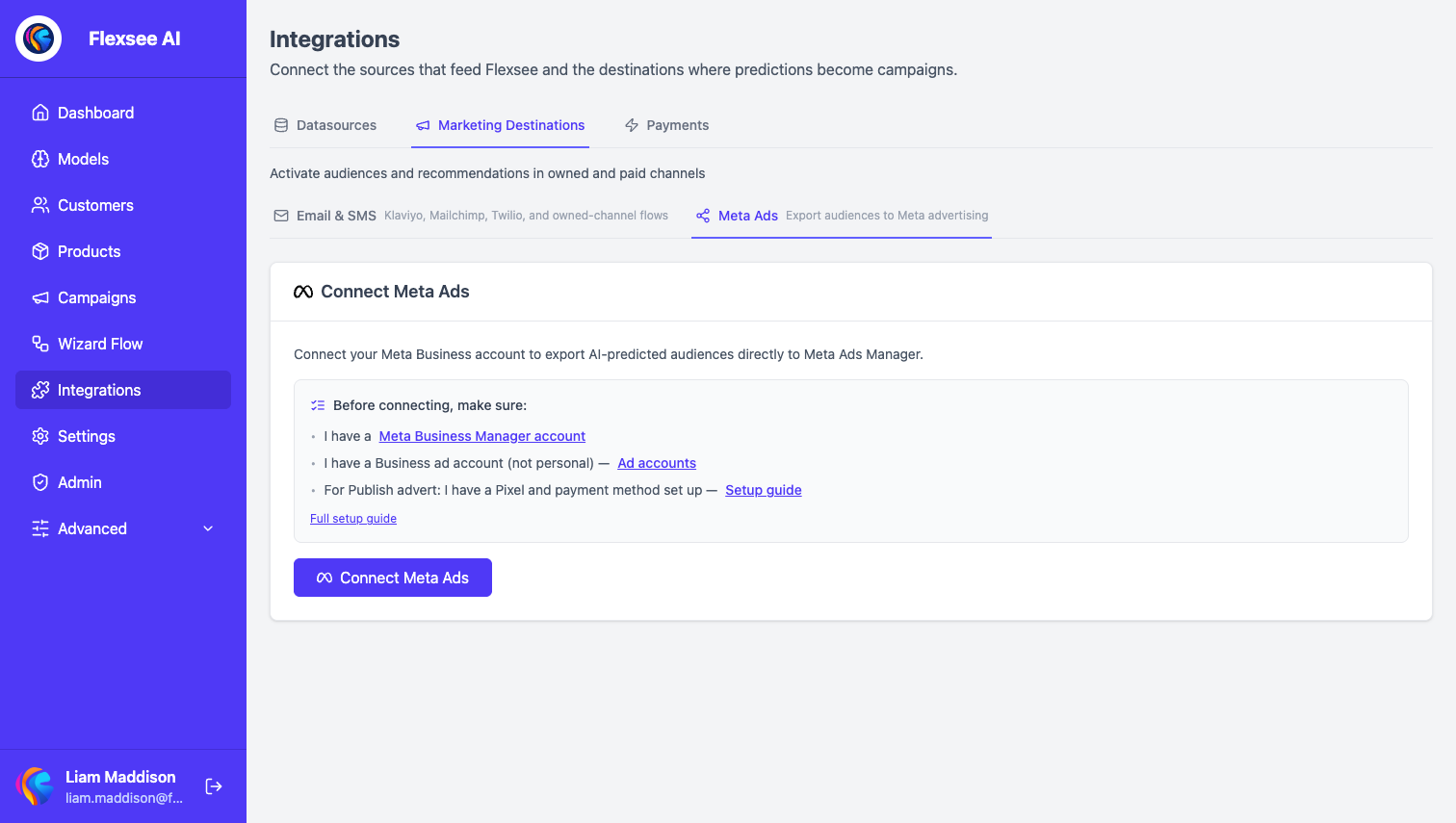
- Go to Integrations → Marketing Destinations → Meta Ads.
- Complete OAuth and select the ad account you will run ads from.
- Ensure your account can create Custom Audiences (accept Meta’s Custom Audience terms in Ads Manager if prompted).
This connection is required before Wizard Flow can prepare or publish—not a one-off CSV export screen.
Step 3 — Start a Wizard Flow for Meta Ads
In this step, you will choose a product and the Meta destination.
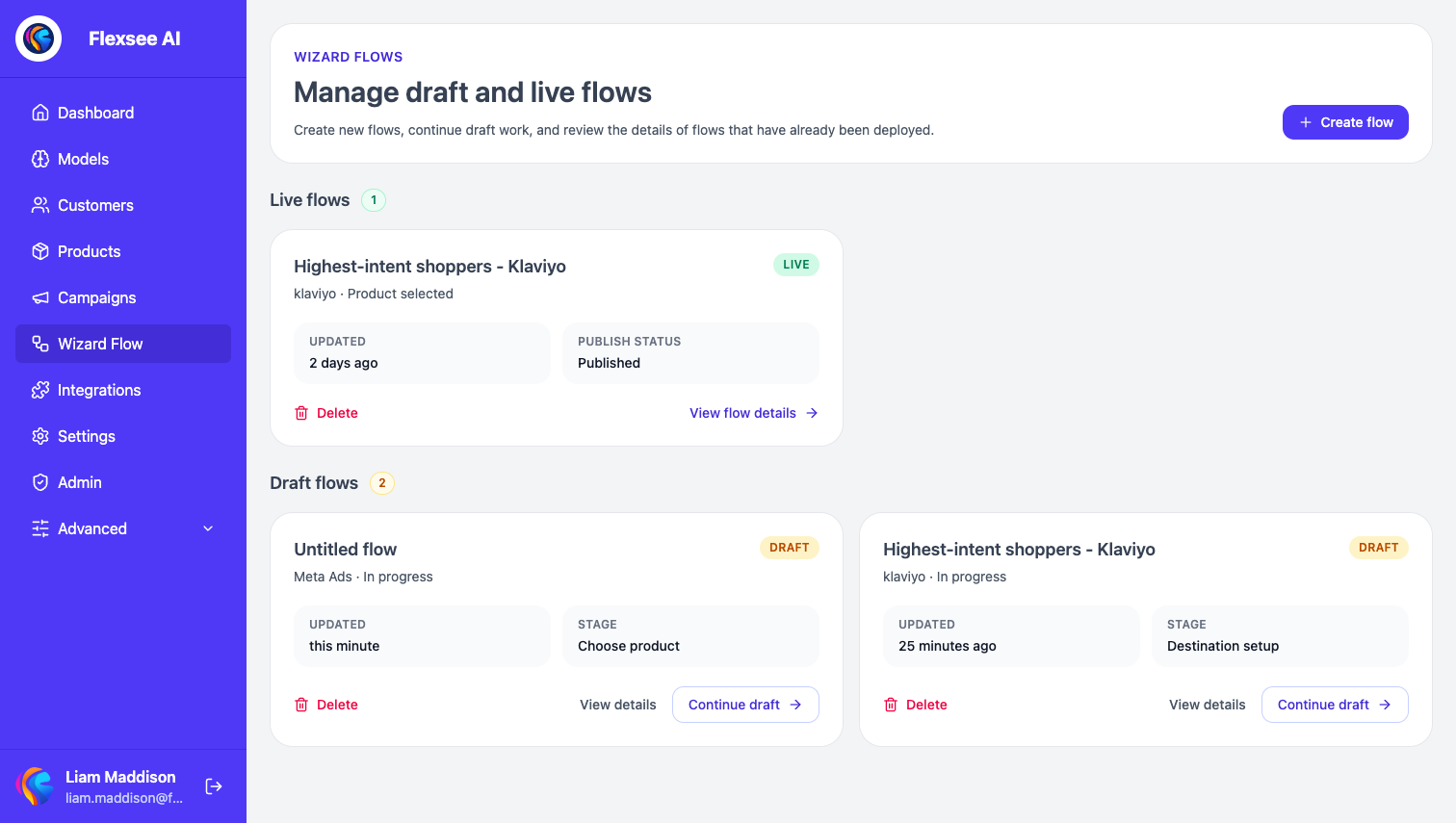
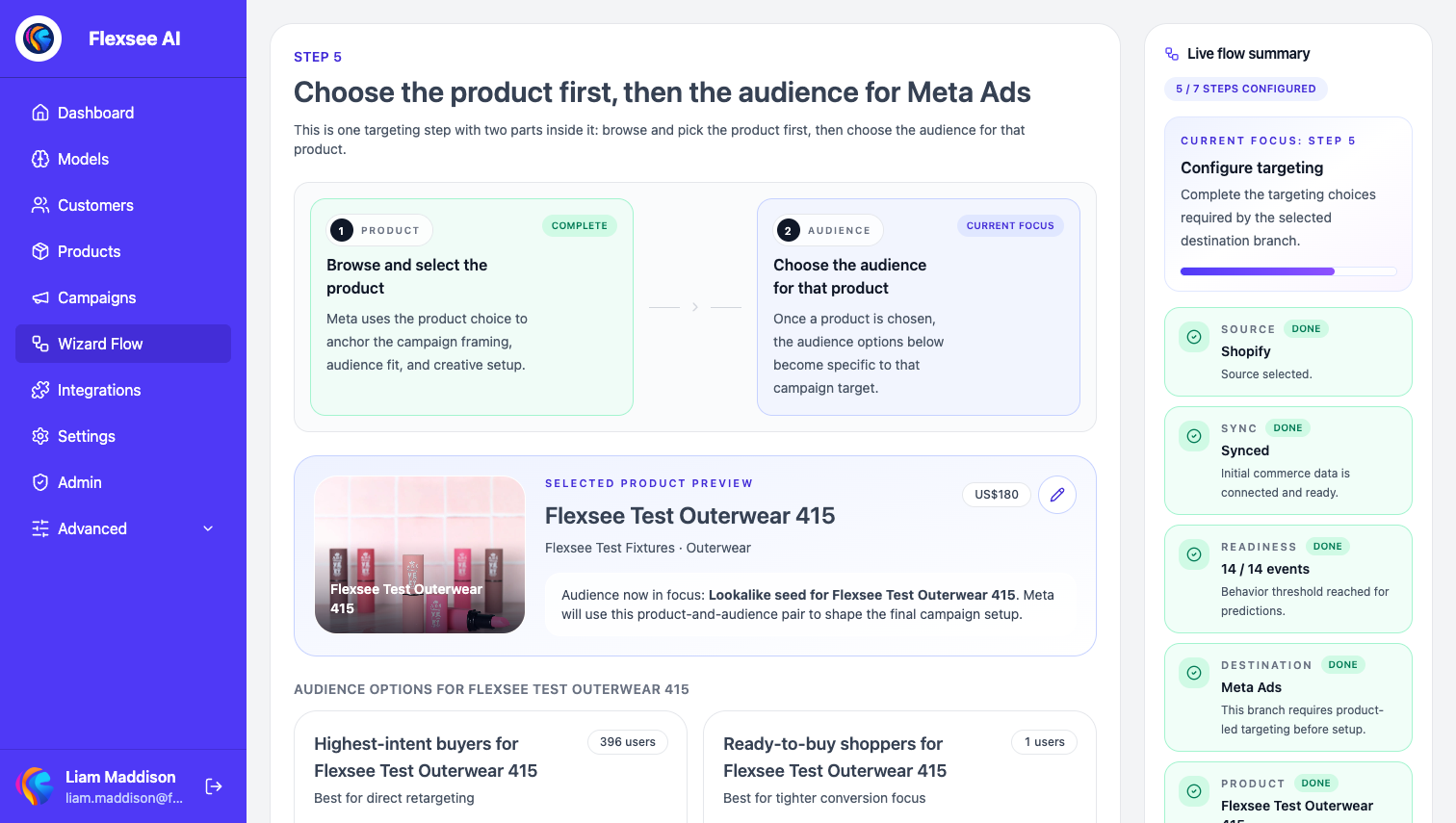
- Open Wizard Flow and create or edit a flow.
- Select the product you want to promote (predictions are product-scoped).
- Choose Meta Ads as the destination and continue to audience setup.
Flexsee loads predicted shoppers for that product and suggests segments such as:
- Highest-intent buyers — full prediction list; best fit for retargeting
- Ready-to-buy shoppers — tighter high-intent tiers
- Lookalike seed — top ~25% of ranked users (minimum 20); best fit for prospecting
Pick the segment that matches your goal. For lookalikes, prefer the lookalike seed (or a large highest-intent list) so the uploadable email count stays at or above 100.
Step 4 — Choose retargeting or prospecting
In this step, you will set objective, budget, and (for prospecting) lookalike settings.
Retargeting
- Flexsee uploads your segment as a Custom Audience.
- The live ad set targets that custom audience only.
- Use when you want to reach people Flexsee already scored as high-intent for this product.
Prospecting
- Flexsee uploads the same segment as the seed Custom Audience.
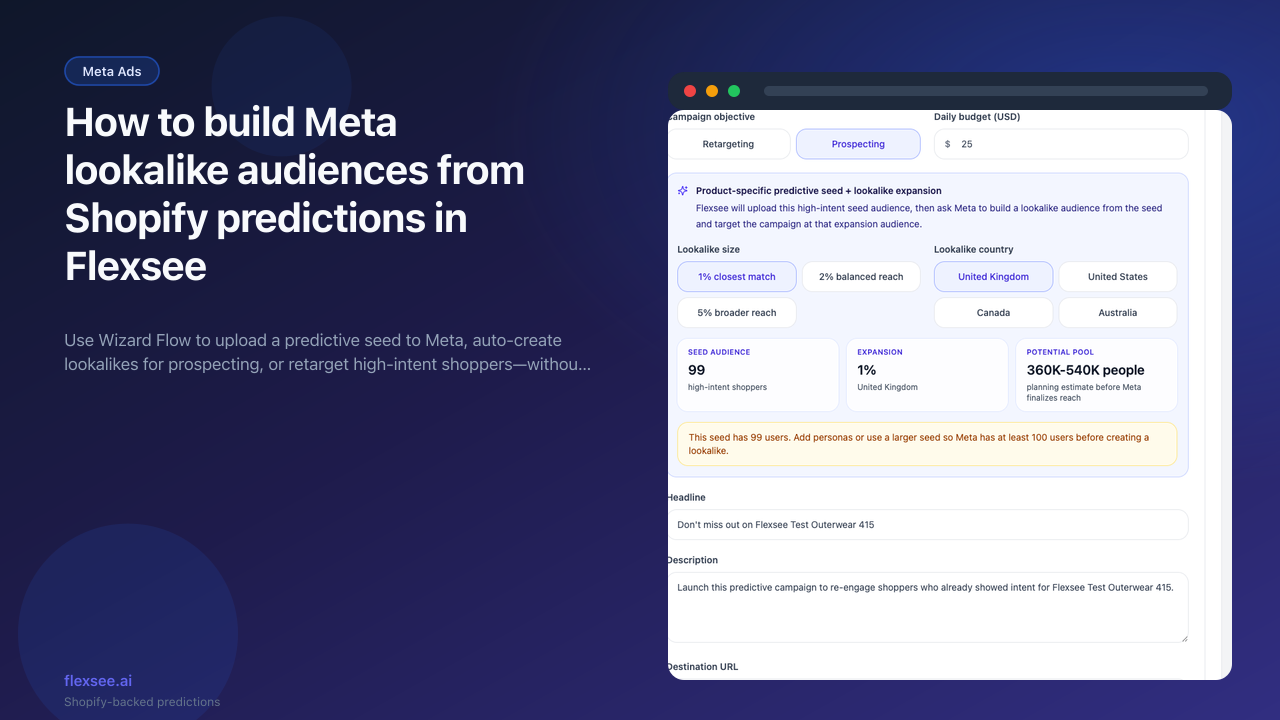
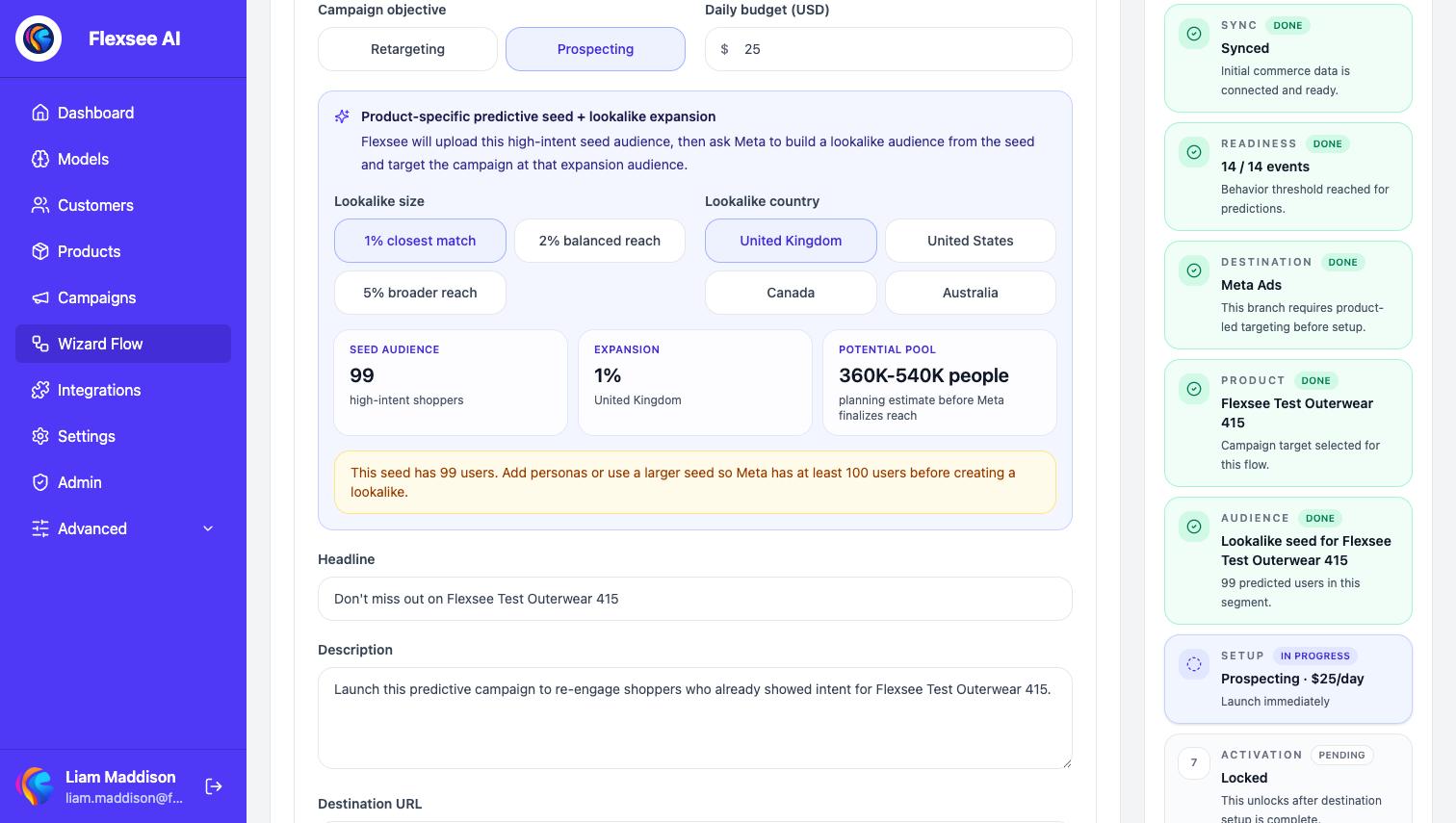
- Flexsee then calls Meta to create a Lookalike (you choose size: 1%, 2%, or 5% and country: UK, US, Canada, or Australia).
- The live ad set targets the lookalike audience, not the seed—so prospecting reaches similar shoppers Meta finds in that country.
- If the seed has fewer than 100 users with email, prepare will fail with a clear error until you widen the segment.
The UI shows seed size, expansion percentage, country, and a planning estimate for lookalike reach; Meta finalizes actual pool size after processing.
Step 5 — Prepare and publish the audience
In this step, you will let Flexsee upload to Meta and confirm the campaign review.
- Enter a daily budget (minimum $10 in the flow) and continue to Prepare audience.
- Flexsee hashes emails (and optional names/phones) per Meta’s requirements and uploads in batches.
- For prospecting, wait for both steps: Uploading to Meta and Lookalike created.
- Review headline, description, and destination URL, then Publish to create the campaign in Meta.
Changing product, segment, budget, objective, or lookalike settings after prepare will invalidate prepared IDs and require preparing again—this avoids targeting a stale audience.
Audience preparation is available when your connected commerce datasource subscription is active.
Step 6 — Measure with Shopify-backed attribution
In this step, you will confirm performance using Flexsee—not only Meta’s dashboard.
Published campaigns use landing URLs with flexsee_campaign_id and UTM parameters so checkout events can attribute orders to the campaign. In Flexsee:
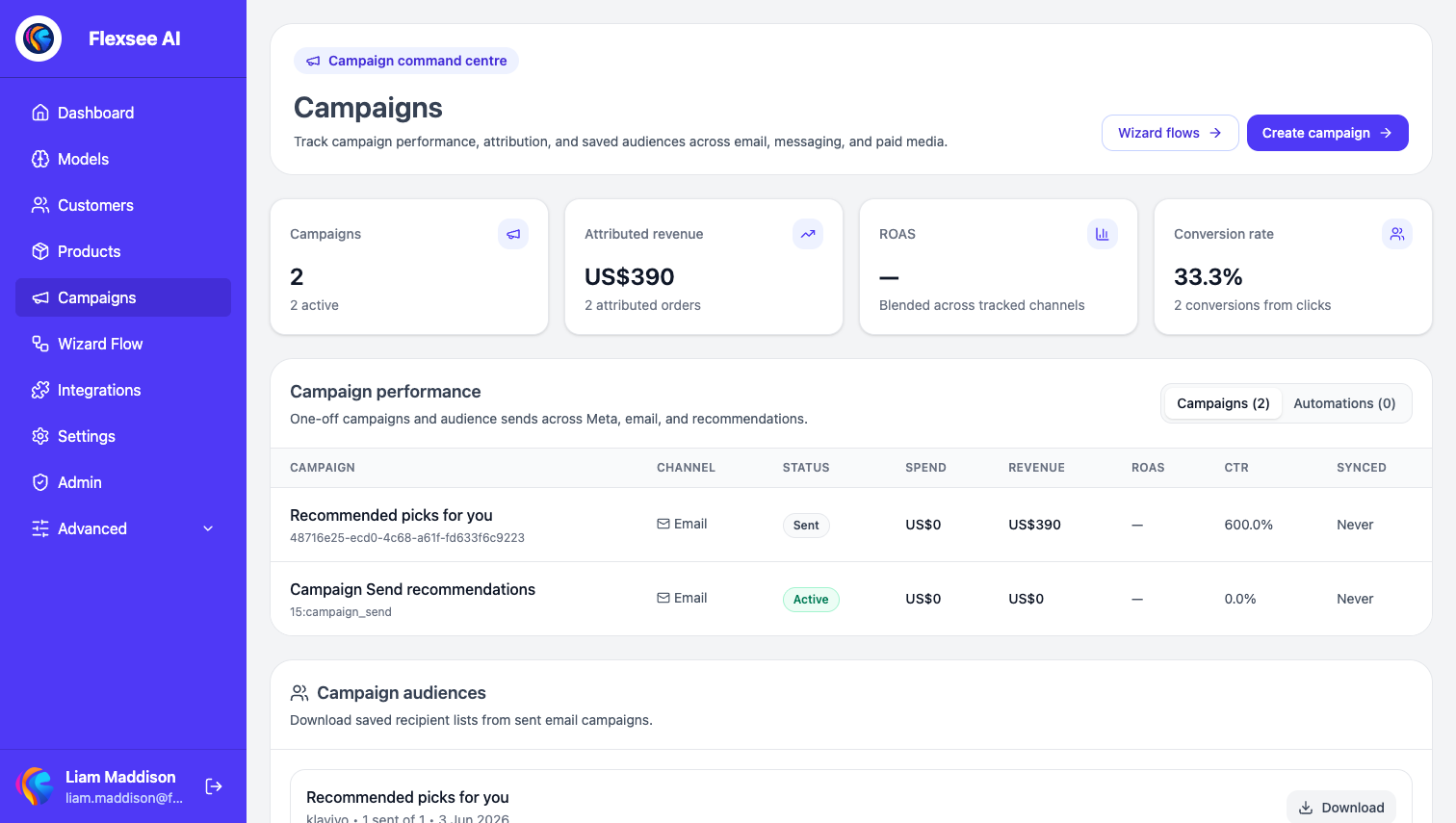
- Open Campaigns for spend and Flexsee-attributed revenue.
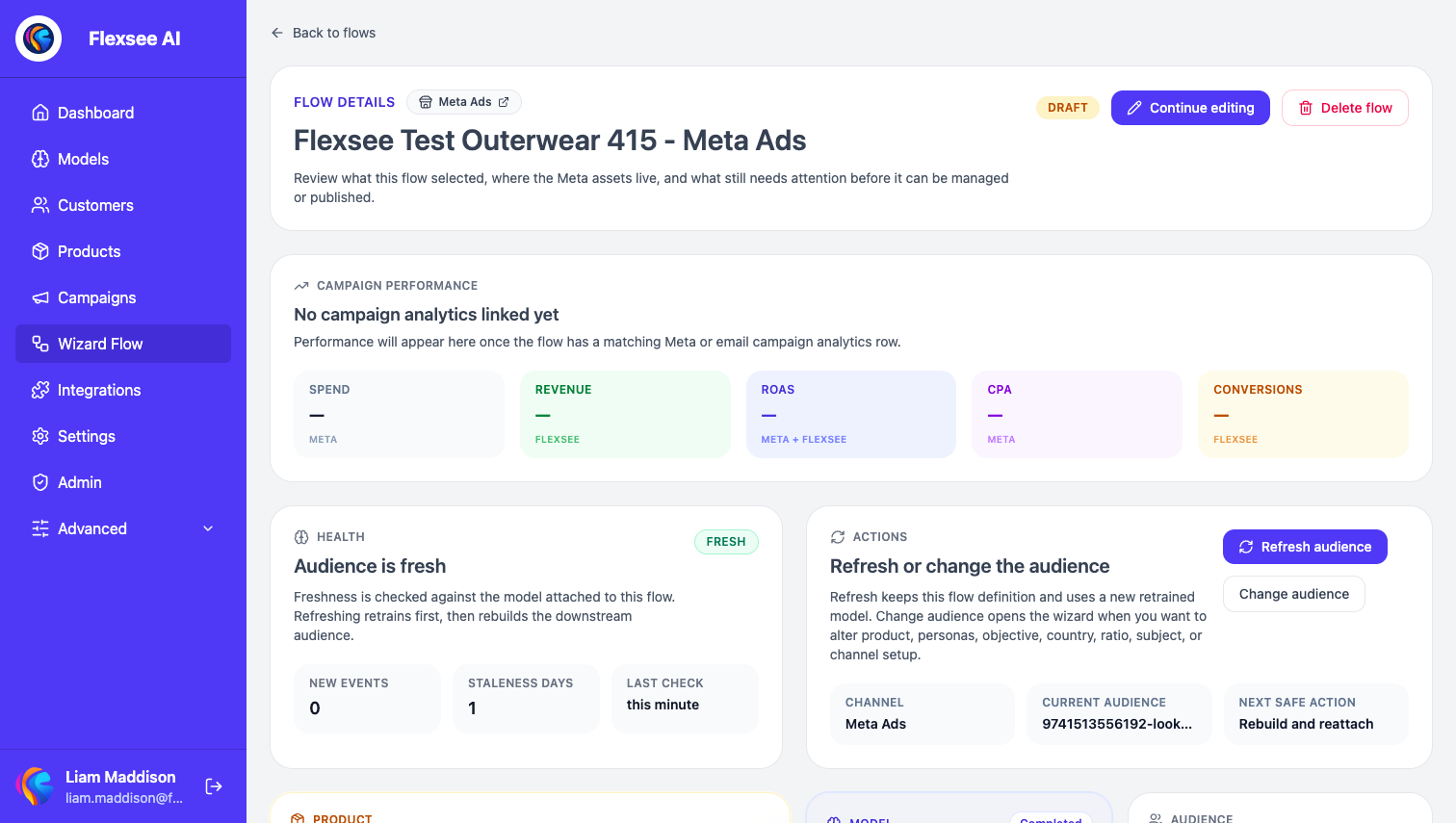
- On the Wizard Flow details page, review performance and campaign insights (sync Meta metrics when prompted for spend and CTR).
- If Meta-reported revenue and Shopify-attributed revenue diverge, use our ROAS reconciliation guide before scaling budget.
See Meta Ads integration docs for connection and publish troubleshooting.
Frequently asked questions
Do I create the lookalike in Meta Ads Manager?
For prospecting flows, Flexsee creates the lookalike when you prepare the audience. You only need Ads Manager for creative tweaks, billing, or account-level settings—not to duplicate audience creation.
How large should the seed be?
Meta requires at least 100 people in the seed Custom Audience. Flexsee recommends using the lookalike seed preset or a large highest-intent segment so scores stay focused while count stays above the minimum.
Can I retarget and prospect at the same time in one flow?
Each Wizard Flow publish uses one objective. Run a retargeting flow on your seed and a separate prospecting flow on a lookalike when you want both strategies.
Does Flexsee replace Meta Ads Manager?
No. Flexsee handles prediction, audience upload, lookalike creation (prospecting), publish orchestration, and Shopify-side attribution. You still manage account billing, policy, and advanced creative tests in Meta.
Is this GDPR-friendly?
You are responsible for consent on your store. Flexsee sends hashed identifiers to Meta for Custom Audiences as Meta requires—see our privacy policy and your Shopify privacy settings.
See also
- Product update: Meta lookalike audience prep in Wizard Flow — prepare custom and lookalike audiences from Shopify predictions before you publish.
Conclusion
Strong lookalikes start with a Shopify-backed seed from Flexsee predictions, not a generic site visitor list. Use Wizard Flow to upload that seed, auto-build lookalikes for prospecting, publish with tracked URLs, and judge results on attributed store revenue.
Comments