How to turn Product Research into Wizard Flow campaigns in Flexsee
Start from Product 360, review seasonal product research, and launch a Wizard Flow campaign with product context carried into Meta or email.
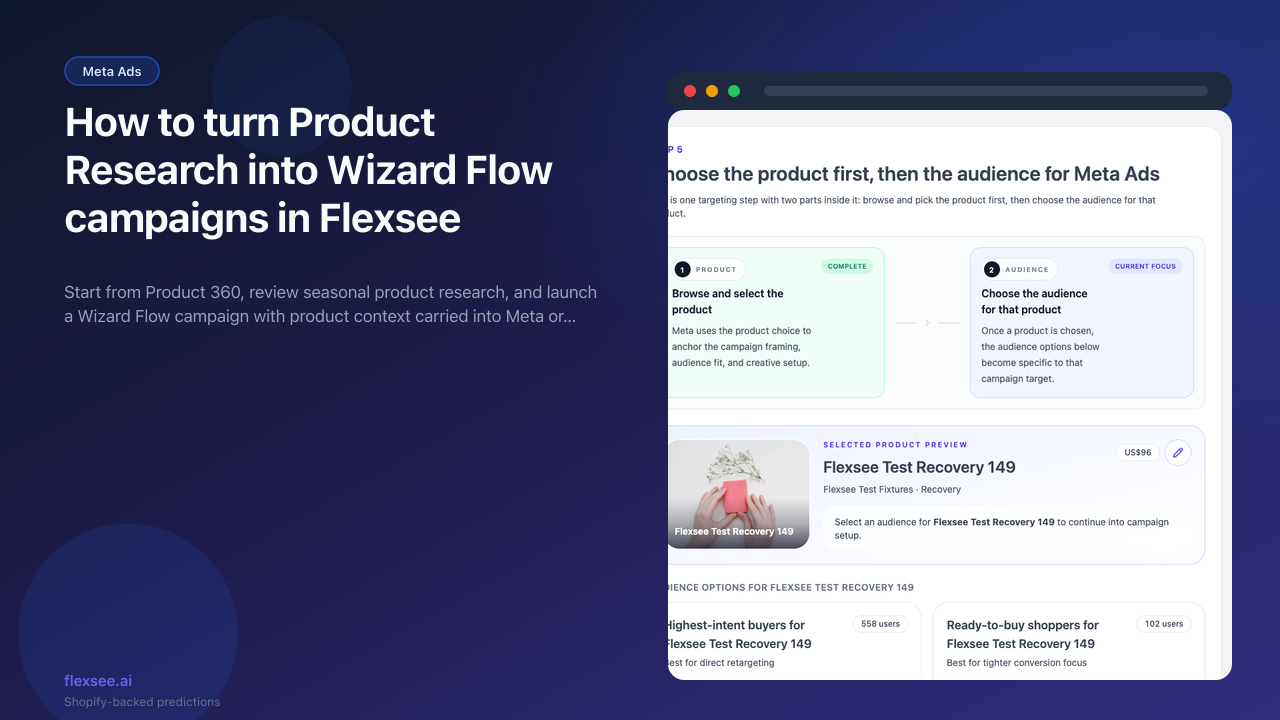
Some Shopify products are obvious campaign candidates. Others look promising in your catalog, but the timing, audience, and destination are less clear. Flexsee Product Research is built for that middle step: it starts from a real synced product, checks store signals, and turns the recommendation into a Wizard Flow campaign path.
This guide shows how to move from Product 360 to Product Research Report, then into Wizard Flow with the product, source, destination, and seasonal context carried forward. You will not train a model manually or start from the Models page. The merchant-facing workflow stays inside Products and Wizard Flow.
What you’ll accomplish
- Open a product-specific research report from Products → Product 360
- Review demand, conversion, inventory, flow, and seasonal timing signals
- Use the buyer or message angle actions to start Wizard Flow with product context
- Confirm the Wizard Flow destination preview before choosing Meta, Klaviyo, Mailchimp, or WhatsApp/SMS
- Continue into targeting and setup without reselecting the same product by hand
Prerequisites
Before you begin, make sure you have:
- A Flexsee account with Shopify connected under Integrations → Datasources
- A synced product catalog with at least one product profile available under Products
- Storefront events or orders for better recommendations; sparse products can still be reviewed, but Flexsee may label them as early reads
- A connected destination if you want to activate immediately, such as Meta Ads or Klaviyo under Integrations → Marketing Destinations
- Optional: read How to connect Shopify and Flexsee in 10 minutes if your store is not ready yet
Step 1 — Open the product from Product 360
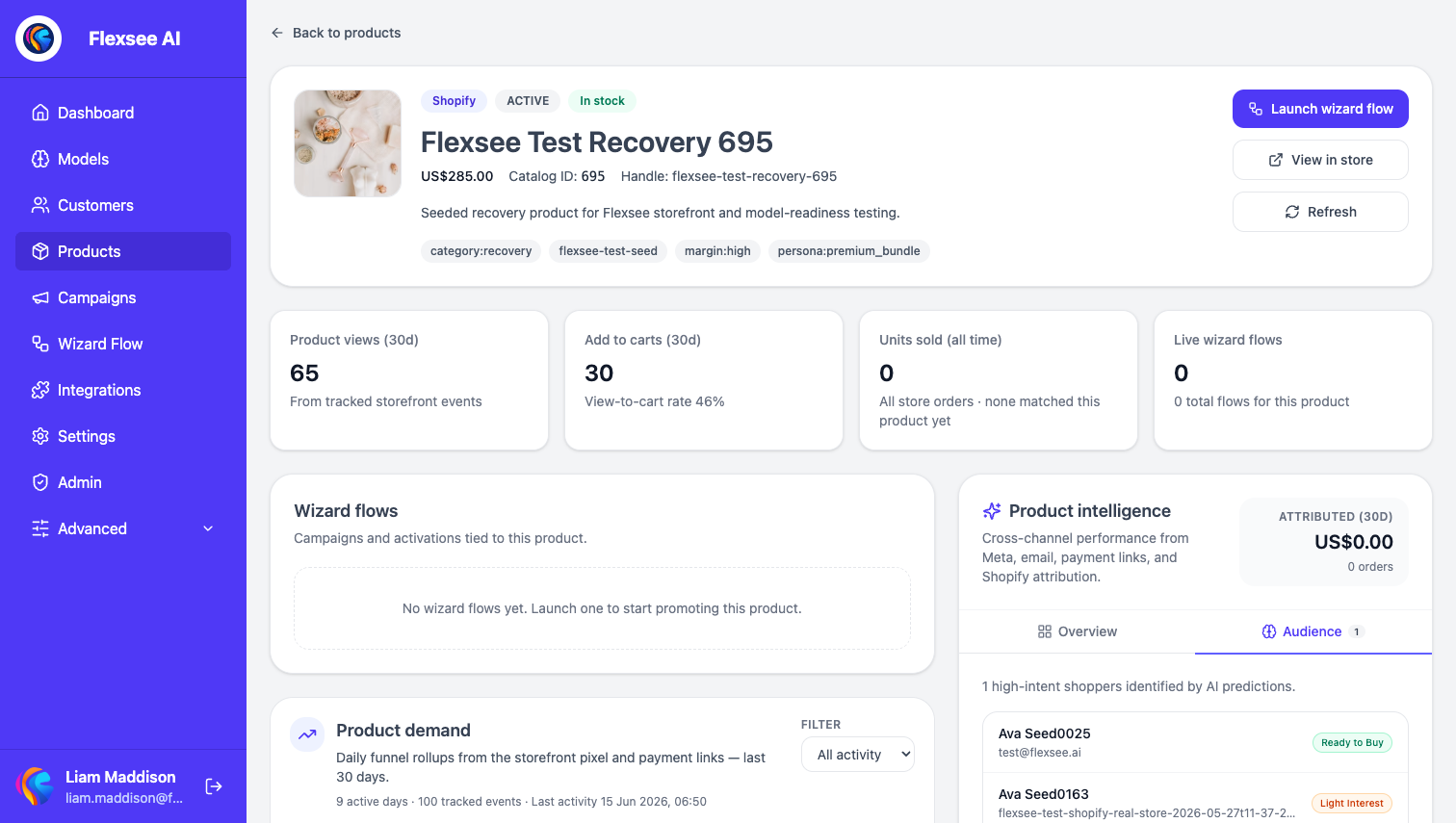
In this step, you will start from a specific catalog product so the research report has real context.
- Sign in to the Flexsee dashboard.
- Open Products from the sidebar.
- Select the product you want to promote or validate.
- On the product profile, review the price, stock state, product tags, and recent intelligence.
- Click Research this product.
Flexsee keeps the generic Product Research page out of the main navigation because it is only useful with a product selected. If someone opens /product-research without a product id, Flexsee redirects them back to the dashboard.
Step 2 — Read the Product Research Report
In this step, you will decide whether the product is ready for activation.
The report begins with the selected product, source, inventory state, and a recommendation label such as Test, Watch, Avoid, or Insufficient data. It also shows five useful readiness metrics:
- Meaningful events - recent product views, add-to-carts, checkouts, recommendation clicks, and Quick Pay starts
- Conversions - completed purchases or attributed conversion events
- View to cart - whether traffic is showing intent
- Revenue - tracked conversion revenue in the recent window
- Flows - how many Wizard Flows already reference the product
Flexsee uses thresholds before recommending activation. The current report treats 50+ meaningful events or 5+ conversions as a stronger signal that a product is ready to test. If a product is out of stock, the report should steer you away from promotion until inventory is fixed.
Step 3 — Review seasonal promotion research
In this step, you will use the seasonal section to choose timing and positioning.
The AI product research area summarizes seasonal fit from historical orders or seasonal product signals. It shows a timing recommendation, confidence label, and season cards for Spring, Summer, Autumn, and Winter. Each season card includes:
- The number of historical orders or signals in that season.
- The share of this product’s seasonal demand represented by that season.
- A fit label such as Peak, Promising, Light, Early read, or No signal.
- A plain-English recommendation for whether to prioritize, test, or avoid the season.
The report also includes Best buyer angle and Best message angle cards. These are intentionally action-oriented. The buyer angle explains who to target first, such as recent viewers, cart starters, checkout starters, or customers who buy similar products. The message angle explains what the campaign should say and whether it is safe to make a seasonal claim.
If the product does not have enough history, keep the language conservative. A small owned-channel test can still be useful, but avoid saying a product is “seasonal” until there is enough evidence.
Step 4 — Start Wizard Flow from the right action
In this step, you will launch Wizard Flow with the research context attached.
Product Research has three activation paths:
- Start Wizard Flow launches the seasonal product campaign path.
- Build this audience starts from the buyer angle and opens Wizard Flow with the product selected.
- Use this message angle starts from the message angle and defaults toward an owned-channel destination such as Klaviyo.
When you click one of these actions, Flexsee builds a Wizard Flow URL with the selected platform product id, product title, commerce source, research referrer, activation intent, and show-preview=1. If the report includes a seasonal timing label, it also sends that as a seasonal recommendation note.
That handoff matters because the next page does not feel like a blank wizard. Wizard Flow can show exactly what came from Product Research before you continue.
Step 5 — Confirm the Wizard Flow destination preview
In this step, you will verify what Product Research selected before choosing the activation destination.
Wizard Flow opens on Where do you want to push this predictive outcome?. When the launch link includes show-preview=1, a Preview from the launch link panel appears above the destination cards. It shows:
- The selected product title
- The commerce source, such as Shopify
- The destination currently selected
- The platform product id
- A seasonal research note, if Product Research provided one
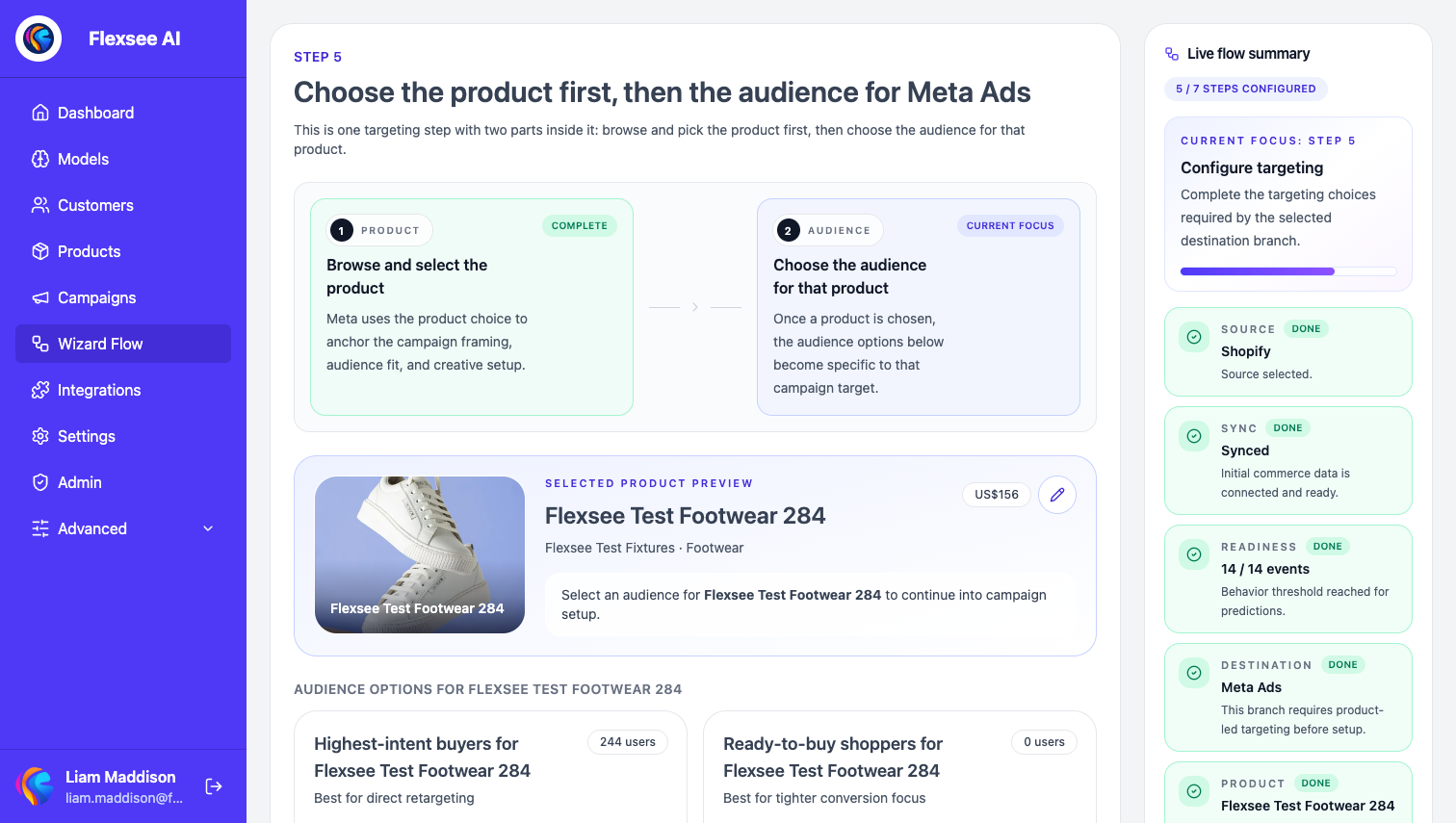
You can still change the destination. Meta asks for a product first, then an audience. Email branches such as Klaviyo and Mailchimp go straight to audience targeting because products are selected later in the email experience. WhatsApp or SMS follows the owned-channel audience path once sender settings are ready.
Step 6 — Continue targeting and setup
In this step, you will finish the campaign path that matches your destination.
For Meta Ads, Wizard Flow keeps the flow product-led. You confirm the product, generate or select the prediction audience, and then move into Meta setup for retargeting or prospecting. Retargeting uses a custom audience path, while prospecting can use a lookalike-style setup when enough seed users are available.
For Klaviyo or Mailchimp, Wizard Flow focuses on the audience. You choose a highest-intent audience, review eligible recipients, and then configure the email send. Klaviyo uses the Flexsee Campaign Send flow path, while Mailchimp uses the Transactional template path described in How to send Mailchimp predictive audiences from Flexsee Wizard Flow.
For WhatsApp or SMS, Wizard Flow filters to reachable phone recipients and checks sender settings before activation.
Troubleshooting
The wrong product appears in Wizard Flow
Start from the product profile or Product Research action again. The current handoff includes the platform product id and product title so Wizard Flow can keep the selected product in context. If you use an old bookmarked URL without those parameters, the wizard may fall back to the latest draft state.
Product Research says there is not enough data
That usually means the product has thin order history, sparse storefront events, or few conversions. Keep the first activation small, use a conservative message, and review the report again after more product views, add-to-carts, checkouts, or orders accumulate.
The email audience has many excluded shoppers
Owned-channel sends only include shoppers who are reachable and consented for that channel. If the excluded filter shows many shoppers without email opt-in, open the consent walkthrough from the audience preview and sync customers again after consent work.
Frequently asked questions
Is Product Research a replacement for Wizard Flow?
No. Product Research helps you decide what to promote, when to promote it, and which buyer or message angle to start with. Wizard Flow is where you build the audience, configure the destination, and activate the campaign.
Can I use Product Research for products with no orders?
Yes, but the recommendation will be more cautious. Flexsee can still use recent product intent and category fit, but strong seasonal claims need more order or event history.
Should I choose Meta or Klaviyo first?
If the product has a warm reachable audience, Klaviyo is often the safer first activation because owned-channel tests are easier to control. If the product has enough audience evidence and you want paid reach, choose Meta and use Wizard Flow’s product-led targeting path.
Do I need to train a model manually?
No. The merchant-facing path is Wizard Flow. Flexsee prepares recommendation audiences from the connected store data as part of the flow, so you do not need to open Models or Build Model for this workflow.
Conclusion
You now have a product-led workflow: open Products, research the selected SKU, review demand and seasonal evidence, then launch Wizard Flow with product context already attached. That keeps campaign planning tied to real Shopify signals instead of starting every activation from a blank destination picker.
Comments