How to trigger Klaviyo flows from Flexsee Campaign Send
Create a Klaviyo metric-triggered flow for Flexsee Campaign Send, add AI recommendation blocks, and launch from Wizard Flow.
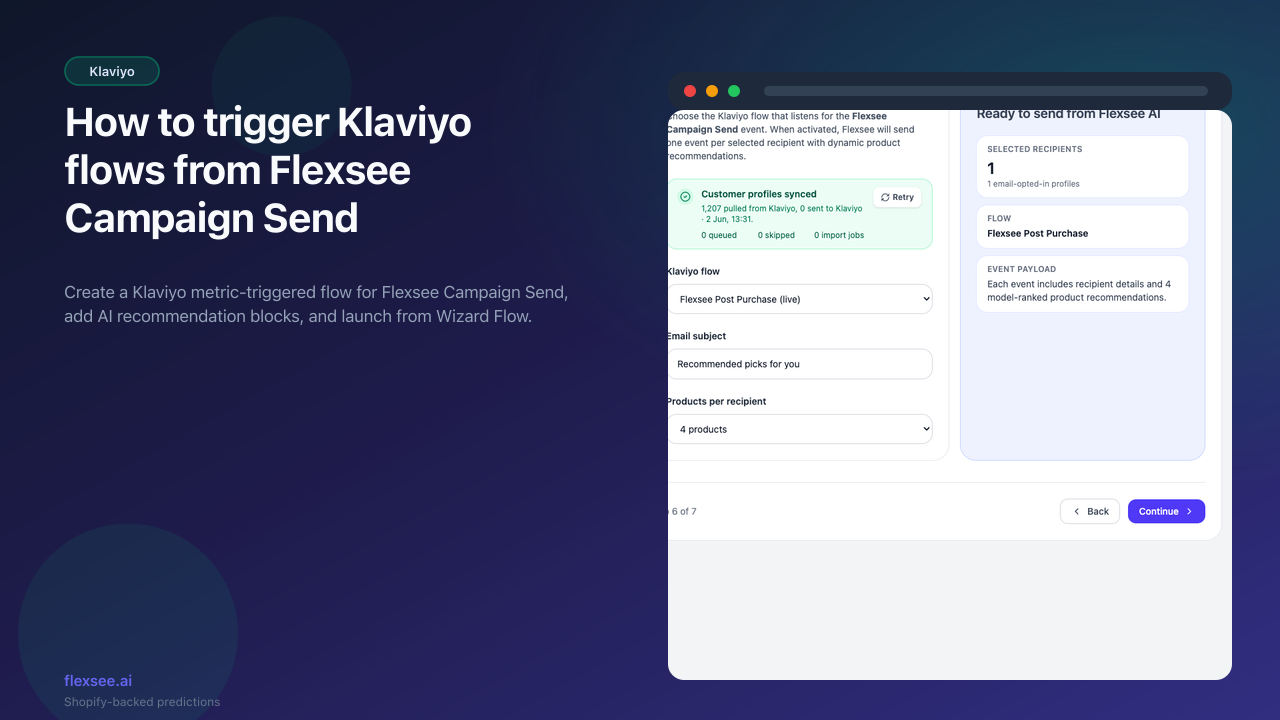
Klaviyo flow triggers are the cleanest way to send personalized product recommendations without building a custom email service. Flexsee does the audience and recommendation work; Klaviyo delivers the email when it receives the Flexsee Campaign Send metric.
This guide shows the end-to-end setup: connect Klaviyo in Flexsee, create the metric-triggered flow in Klaviyo, add the recommendation block, and launch a send from Wizard Flow. When you finish, each selected customer receives an event with flexsee_recommendations tailored to that profile.
What you’ll accomplish
- Connect Klaviyo under Integrations -> Marketing Destinations -> Email & SMS
- Create a Klaviyo flow triggered by Flexsee Campaign Send
- Add a “Picked Just For You” block that renders
event.flexsee_recommendations - Select the flow in Wizard Flow and send one event per opted-in recipient
Prerequisites
Before you begin, make sure you have:
- A Flexsee account with at least one active commerce data source subscription
- Shopify or WooCommerce data synced into Flexsee so Wizard Flow can build recommendations automatically
- A Klaviyo account with permission to create private API keys and flows
- Customer email consent synced into Flexsee, either from Shopify, WooCommerce, or Klaviyo
- Optional background reading: How to add AI product recommendations to Klaviyo
Step 1 — Connect Klaviyo in Flexsee
In this step, you will authorize Klaviyo so Flexsee can discover flows and send recommendation events.
- Open the Flexsee dashboard.
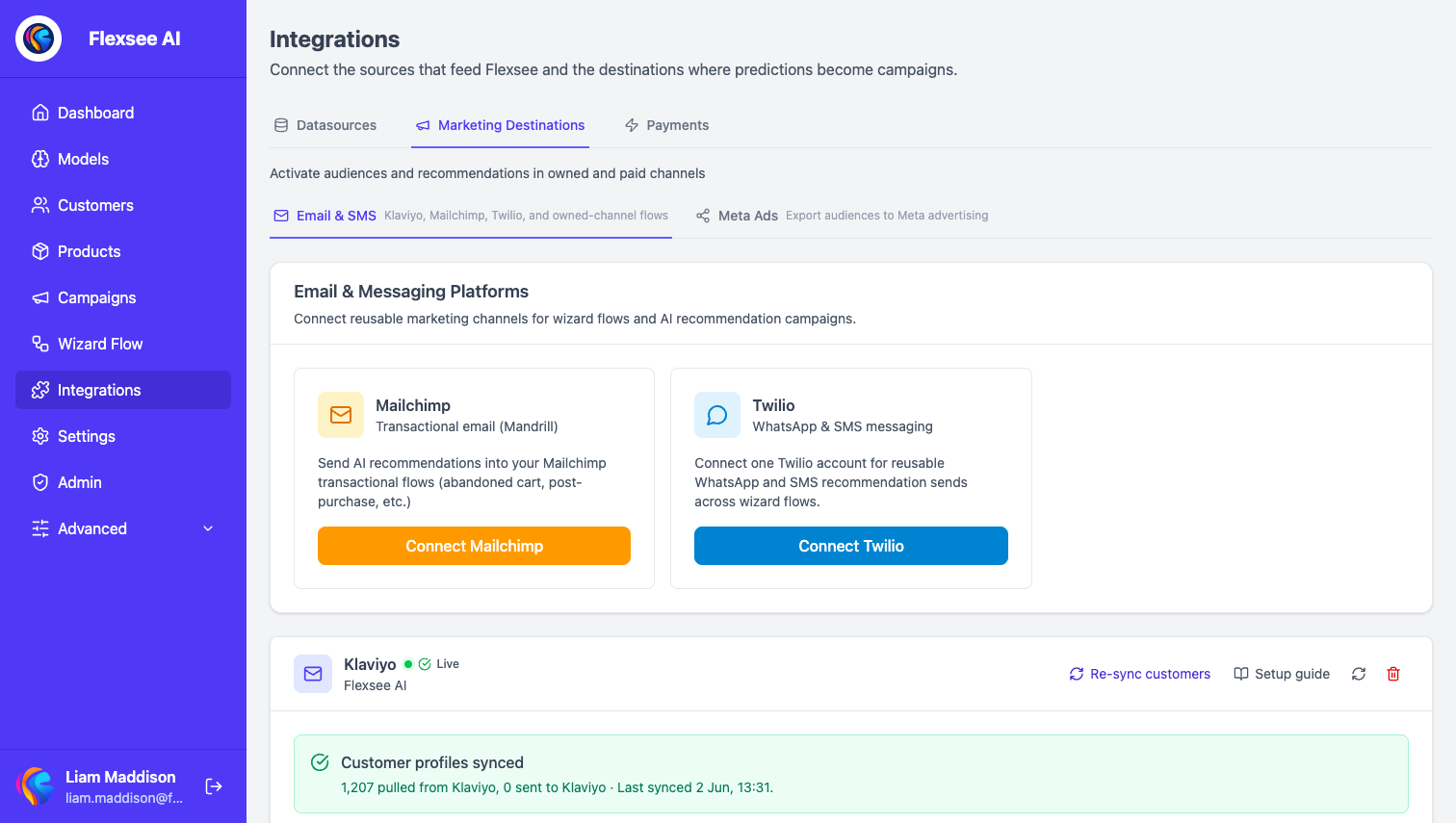
- Go to Integrations -> Marketing Destinations -> Email & SMS.
- Choose Klaviyo.
- In Klaviyo, open Settings -> API Keys and create a private API key with the permissions your account requires for profiles, events, and flow discovery.
- Paste the key into Flexsee and save the integration.
After connection, Flexsee shows your Klaviyo integration card. If customer consent has changed recently, use Re-sync customers with Klaviyo. Wizard Flow only sends to reachable profiles: for email, that means a valid email address and email opt-in.
Step 2 — Create the Flexsee Campaign Send metric flow
In this step, you will create the Klaviyo flow that listens for the event Flexsee sends.
- In Klaviyo, go to Flows.
- Select Create Flow.
- Choose Create from scratch.
- Pick a Metric trigger.
- Use Flexsee Campaign Send as the metric name.
- Add an Email action after the trigger.
If Klaviyo has not seen the metric yet, create it with the exact name Flexsee Campaign Send. Flexsee sends that metric when you activate the email step in Wizard Flow. The backend validates that a Klaviyo flow is selected before sending, so this flow needs to exist before you launch a real campaign.
Use a clear name such as Flexsee Campaign Send - Product Picks. That makes it easy to select the right flow later from the Klaviyo flow dropdown in Wizard Flow.
Step 3 — Add the Flexsee recommendation block
In this step, you will add dynamic product recommendations to the Klaviyo email template.
Flexsee sends the event with a few useful properties:
| Event property | What it is for |
|---|---|
event.subject | The subject line you enter in Wizard Flow |
event.first_name | Recipient first name when available |
event.last_name | Recipient last name when available |
event.flexsee_recommendations | Array of recommended products |
event.flexsee_has_recommendations | Boolean you can use to hide empty blocks |
Each recommendation includes product data such as title, image URL, destination URL, price, score, and rank. In the Klaviyo walkthrough, Flexsee provides a ready-to-paste HTML block that starts with a responsive <style> section and renders a “Picked Just For You” product grid.
- Open the email template inside the Klaviyo flow.
- Drag an HTML block into the template where recommendations should appear.
- Paste the Flexsee block from the in-app Klaviyo walkthrough or from the Klaviyo email campaign docs.
- Send a test email to a profile that has received a Flexsee event.
- If Klaviyo says the template tags are invalid, re-copy the block. The snippet uses Klaviyo/Django-style syntax, not Shopify Liquid.
For mobile previews, Klaviyo may not fully reflect the CSS in its editor. The Flexsee walkthrough includes an optional mobile-only snippet you can add as a second HTML block and show only on mobile.
Step 4 — Build the audience in Wizard Flow
In this step, you will choose who receives the Klaviyo event.
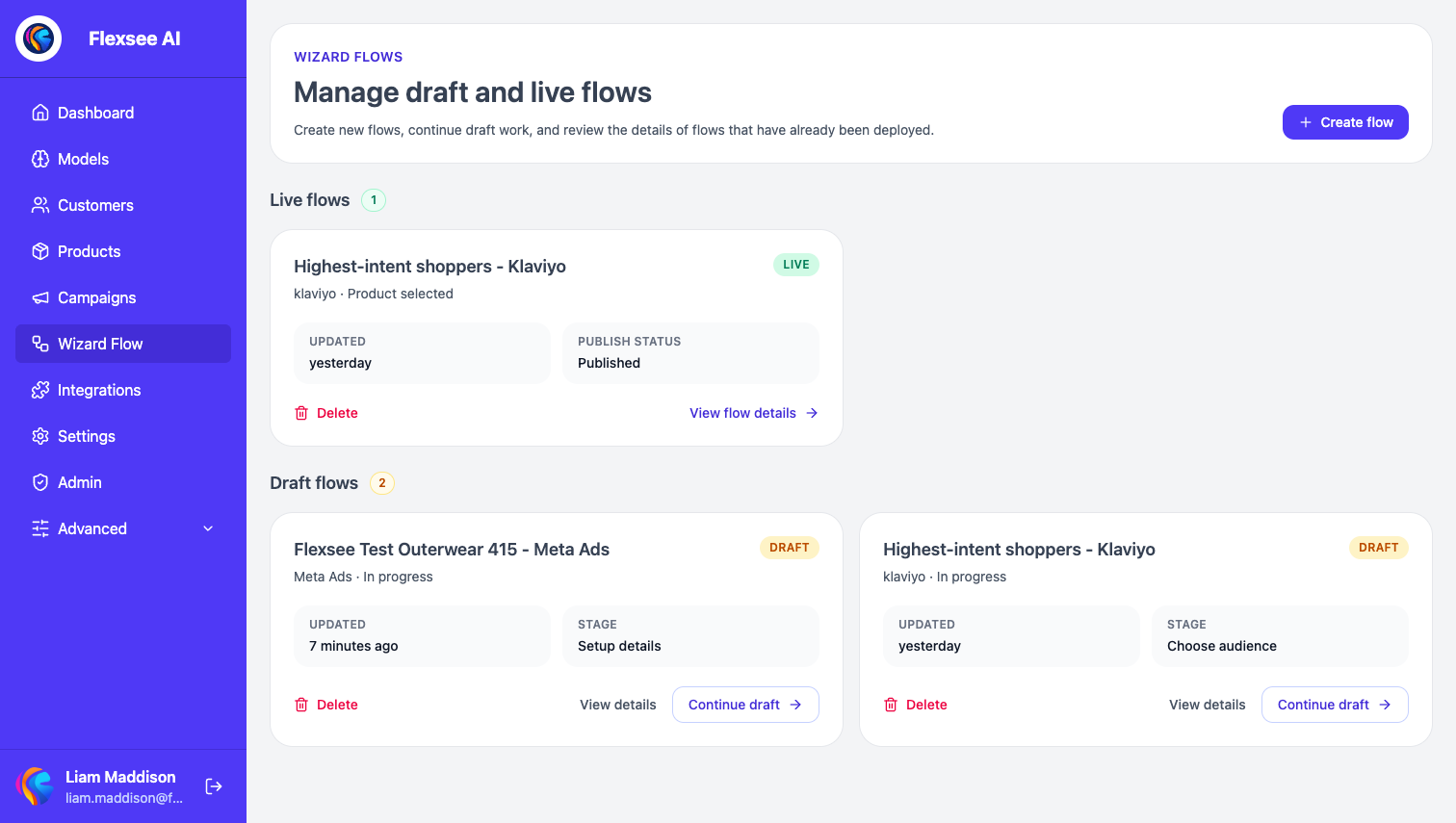
- Open Wizard Flow.
- Select Create flow or continue a draft.
- Choose the commerce source you want Wizard Flow to use.
- Pick Klaviyo as the destination.
- Review the audience options and choose the predictive segment that matches your campaign goal.
- Remove any recipients you do not want to include.
Flexsee prepares recommendations automatically from the commerce source and selected recipients inside Wizard Flow.
This is also where consent matters. The send service filters out recipients without the required email opt-in before it triggers Klaviyo.
Step 5 — Select the Klaviyo flow and send
In this step, you will connect your Wizard Flow campaign to the Klaviyo flow you created earlier.
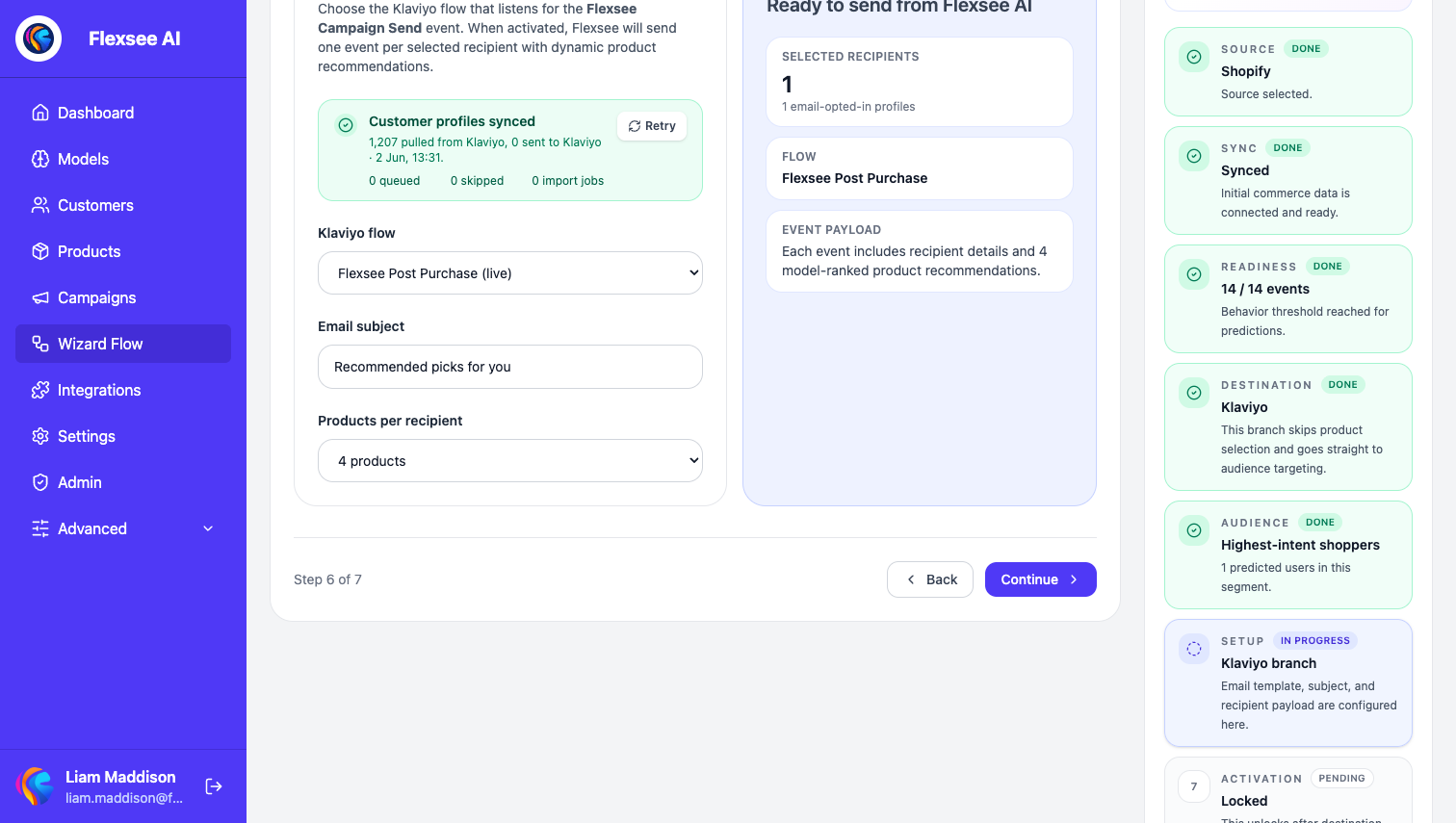
- Continue to the email setup panel.
- Under Klaviyo send setup, find Trigger the Flexsee campaign flow.
- Choose the relevant Klaviyo flow.
- Enter the Email subject.
- Choose Products per recipient. Flexsee supports two to six products in the UI.
- Continue to activation and choose Send email.
When activated, Flexsee sends one Flexsee Campaign Send event per selected, opted-in recipient. Klaviyo receives the event and triggers the matching flow. The email is delivered by Klaviyo, not by Flexsee directly.
If the Klaviyo flow dropdown is empty, go back to the integration card and confirm the API key is valid. Then refresh flows or re-open the Wizard Flow step.
Step 6 — Verify the send in Klaviyo and Flexsee
In this step, you will confirm the metric, email rendering, and campaign status.
- In Klaviyo, open Analytics -> Metrics and search for Flexsee Campaign Send.
- Open a recent event and inspect
flexsee_recommendations. - Check a delivered email on desktop and mobile.
- In Flexsee, open the Wizard Flow details page and review the send outcome.
Start with a small test audience before sending to a large segment. Include your own opted-in email so you can inspect the real event payload and the final email in an inbox.
Troubleshooting
The Klaviyo flow dropdown is empty
Confirm the integration is active under Email & SMS and the API key can read flows. The flow should be triggered by Flexsee Campaign Send, and it should be saved in Klaviyo before you return to Wizard Flow.
Klaviyo shows invalid template tags
Re-copy the HTML block from the Flexsee walkthrough. Klaviyo uses Django-style template syntax, so a Shopify Liquid pattern like limit:3 can fail. The Flexsee block uses Klaviyo-compatible syntax.
The email sends but the product block is blank
Check the event payload in Klaviyo. If flexsee_has_recommendations is false or flexsee_recommendations is empty, the selected audience may not have enough product signals yet. Confirm the store sync is complete, choose a narrower product/audience context in Wizard Flow, then send a small test again.
Some selected customers did not receive an event
Flexsee filters recipients by reachability and consent. For email sends, selected profiles need a usable email address and email marketing opt-in. Re-sync Klaviyo customers if consent changed recently.
Frequently asked questions
Does Flexsee send the email itself?
No. Flexsee sends a Klaviyo event. Klaviyo triggers the flow and sends the email from your Klaviyo account.
What metric name should I use?
Use Flexsee Campaign Send exactly. Wizard Flow asks you to select a Klaviyo flow that listens for that event.
Can one Klaviyo flow support multiple Flexsee campaigns?
Yes. You can reuse one event-triggered flow and change the subject, audience, and product count in Wizard Flow. If you want different layouts or offers, create separate Klaviyo flows and name them clearly.
Do recommendations work for WooCommerce sources?
Yes, if WooCommerce is connected, subscribed, and synced. Wizard Flow handles the recommendation setup for the selected commerce source before sending recommendations.
Conclusion
You now have a Klaviyo flow triggered by Flexsee Campaign Send, a template block that renders flexsee_recommendations, and a Wizard Flow path for launching AI recommendation emails from your commerce data.
Next steps
- Read How to add AI product recommendations to Klaviyo
- Review Klaviyo email campaign docs
- Compare owned email with Meta lookalike audiences from Shopify behavior
- Start a test send from Wizard Flow
Comments