How to enable the Shopify behavioral pixel for Flexsee Campaign Flow
Install the Flexsee AI Predictions pixel, set Customer events to Always on, and confirm storefront events before Campaign Flow recommendations.
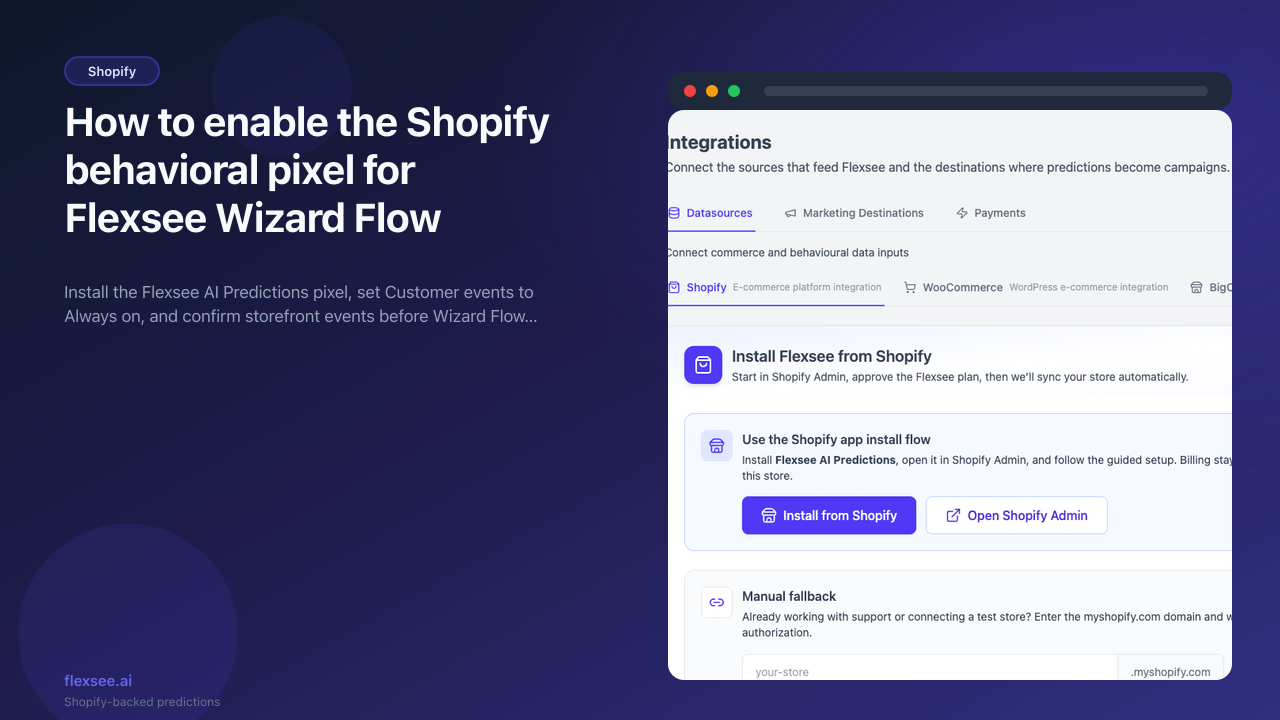
Synced products and orders tell Flexsee what sold. Storefront behavior — product views, add to cart, and similar events — tells Flexsee what shoppers are doing right now. Without the Flexsee AI Predictions web pixel, Campaign Flow recommendations lean on thinner signals and can stall until enough behavioral events arrive.
This guide walks through the merchant path on Integrations → Datasources → Shopify: enable the pixel from Flexsee, set Shopify Customer events to Always on, confirm events are flowing, then open Campaign Flow when readiness shows you are past the minimum. You will not open Models or train anything by hand. Prediction work stays inside Campaign Flow once the store is ready.
What you’ll accomplish
- Confirm Shopify is connected and synced under Integrations → Datasources → Shopify
- Enable the Flexsee AI Predictions pixel so the store card shows Pixel connected
- Set Shopify Settings → Customer events → App pixels mode to Always on
- Reach the Behavioral events for Campaign Flow minimum (10 events) when that progress bar is shown
- Open Campaign Flow with storefront signals available for recommendation audiences
Prerequisites
Before you begin, make sure you have:
- A Shopify store with Admin access to install apps and change Customer events
- A Flexsee account with Shopify already connected — or complete How to connect Shopify and Flexsee in 10 minutes first
- Permission to manage integrations in Flexsee (
integrations:connect) so Enable pixel and Re-connect are available - Optional: a commerce subscription on the store if you want included daily sync automation on the Shopify page (pixel enable works from the store card once the app is authorized)
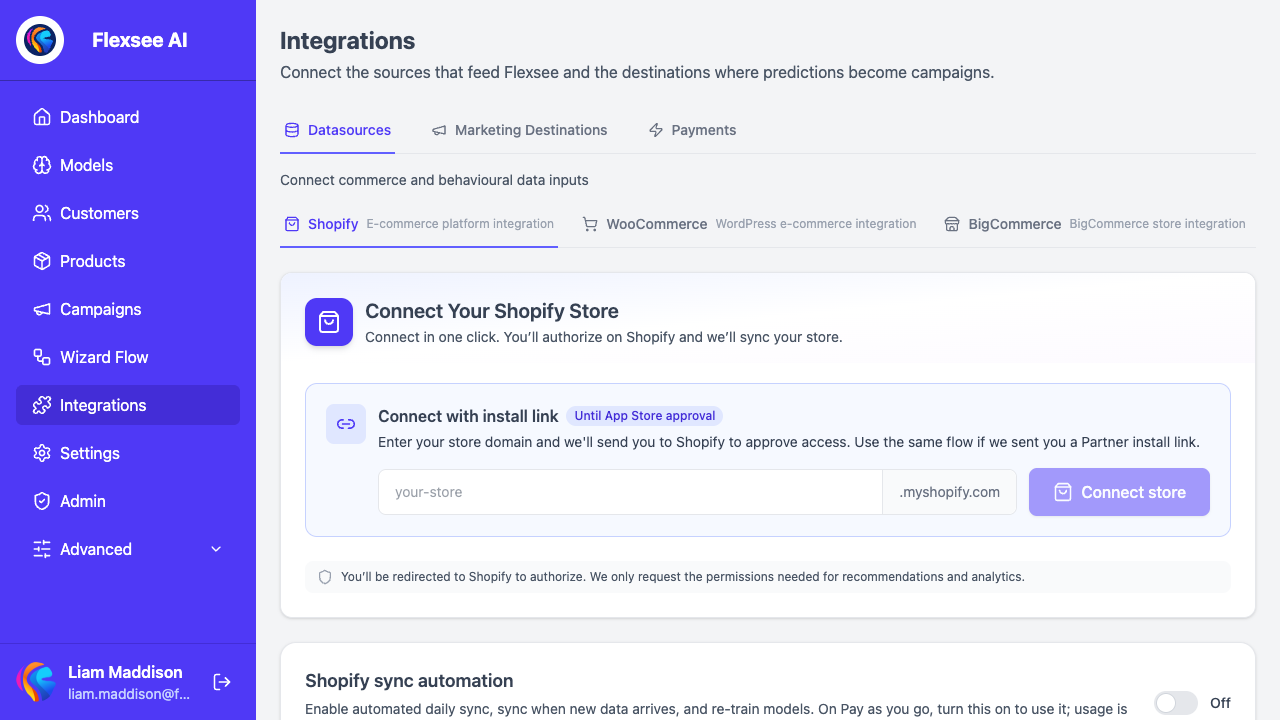
Step 1 — Confirm Shopify is connected and synced
In this step, you will make sure Flexsee can see your store before you touch the pixel.
- Sign in to the Flexsee dashboard.
- Open Integrations → Datasources → Shopify (
/integrations/datasources/shopify). - Confirm a store card is present with sync status moving toward Synced (not stuck on Connecting or error).
- Review the Products, Orders, and Customers counts and Last Sync. If counts are still climbing, wait for Sync in progress to finish or click Sync Now.
- If pixel actions fail later with permission issues, use Re-connect on the store card to re-authorize scopes (including customer events / pixels), then return here.
Catalog and order sync is separate from the web pixel. Both matter for Campaign Flow, but the pixel is what streams live storefront events into Flexsee after install.
Step 2 — Enable the Flexsee AI Predictions pixel
In this step, you will create or update the Shopify app web pixel so Flexsee owns the install for your organization.
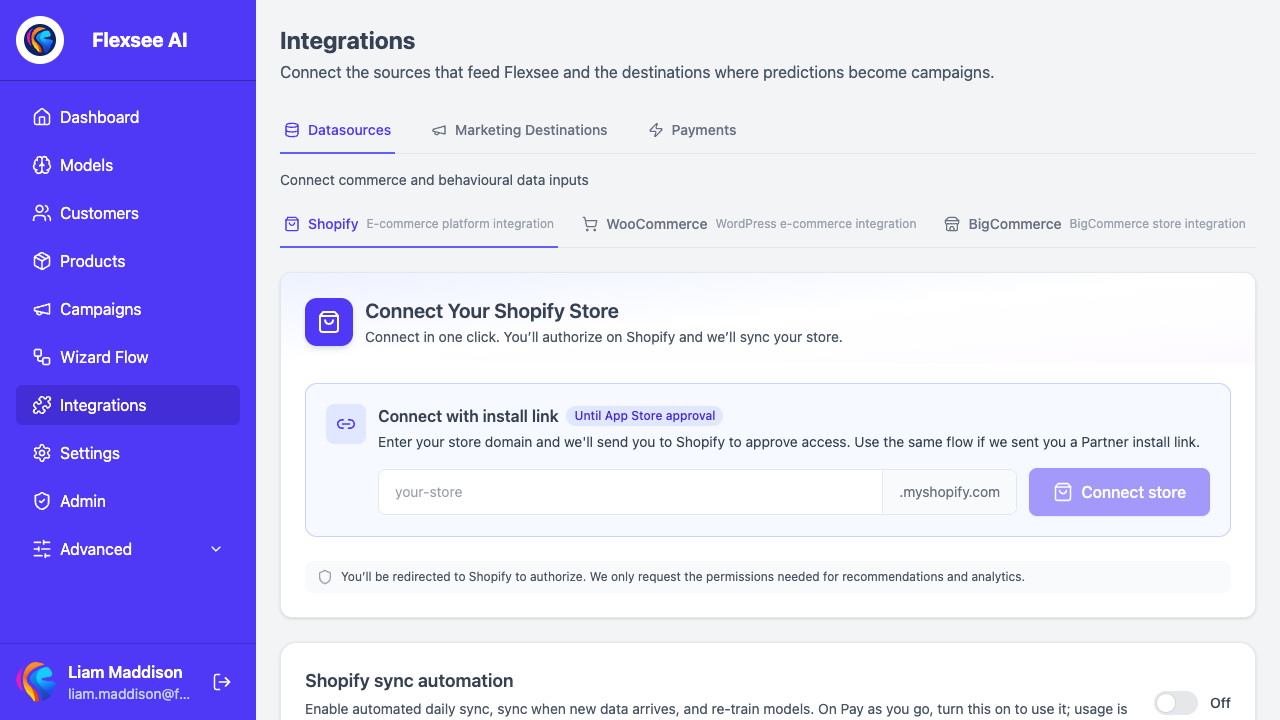
- Stay on Integrations → Datasources → Shopify.
- On the store card, find the pixel badge next to the store name:
- Pixel connected (green) means the app web pixel exists and is configured for your Flexsee organization.
- Pixel not installed or Pixel status unknown means you still need to enable or refresh it.
- Click Enable pixel. The button shows Enabling… while Flexsee calls Shopify to create or update the web pixel with your organization settings.
- Refresh the page if needed. Success toast copy is along the lines of “Pixel enabled for [store]. Refresh to see status.” Aim for Pixel connected.
Behind the scenes, Flexsee uses Shopify’s web pixel APIs (POST /shopify/stores/:storeId/enable-pixel) to create or update the Flexsee AI Predictions pixel with your org id and ingest endpoint. You do not paste a Meta pixel ID or export a CSV for this step. Optional Meta pixel ID settings live in the embedded Shopify app path if your team uses that later; Campaign Flow readiness depends on Flexsee’s own behavioral ingest.
If Enable pixel fails, open Shopify Admin with Open Admin on the same card, confirm the Flexsee app is still installed, then try Re-connect in Flexsee and enable again.
Step 3 — Set Customer events mode to Always on
In this step, you will unlock full event data access in Shopify so Optimized modes do not throttle what Flexsee can use.
- In Shopify Admin, go to Settings → Customer events.
- Open App pixels.
- Select Flexsee AI Predictions.
- Set data access Mode to Always on.
- Return to Flexsee. The Shopify integration page includes a callout titled Customer events: set pixel to Always on with the same path — use it as a checklist after you click Enable pixel.
Shopify’s Optimized modes can limit event payloads. Campaign Flow recommendation quality improves when the pixel can send full product-view and cart-style events. Treat Always on as part of install, not an optional polish step.
Step 4 — Generate and confirm behavioral events
In this step, you will prove events are reaching Flexsee and clear the Campaign Flow minimum when the readiness bar is visible.
- On the Flexsee Shopify store card, look for Behavioral events for Campaign Flow. When shown, it displays a count like
N / 10 minimumand a progress bar. - Browse your live storefront (or a password-protected preview) as a shopper: open product pages, add items to cart, and move through checkout steps where possible. Use a real browser session, not only Admin previews that skip storefront scripts.
- Return to Integrations → Datasources → Shopify and refresh. Watch the event count climb. When you pass 10 events, the UI can show Ready for Campaign Flow.
- If the count stays at zero after several minutes, re-check Pixel connected, Always on, and that you browsed the storefront where the app pixel is installed (correct shop domain).
The readiness copy explains that Flexsee needs at least 10 behavioral events (for example product views or add to cart) before Campaign Flow can prepare recommendations automatically. Keep the pixel installed and generate light traffic; you do not need to open Models or trigger a manual retrain.
Orders and customers continue to sync via Sync Now and, with an active commerce subscription on the store, via Shopify sync automation (daily syncs and sync-on-new-data). That automation is separate from pixel event ingest — both should stay healthy for ongoing campaigns.
Step 5 — Open Campaign Flow once the store is ready
In this step, you will leave the integration page and start a merchant-facing campaign path that uses the new signals.
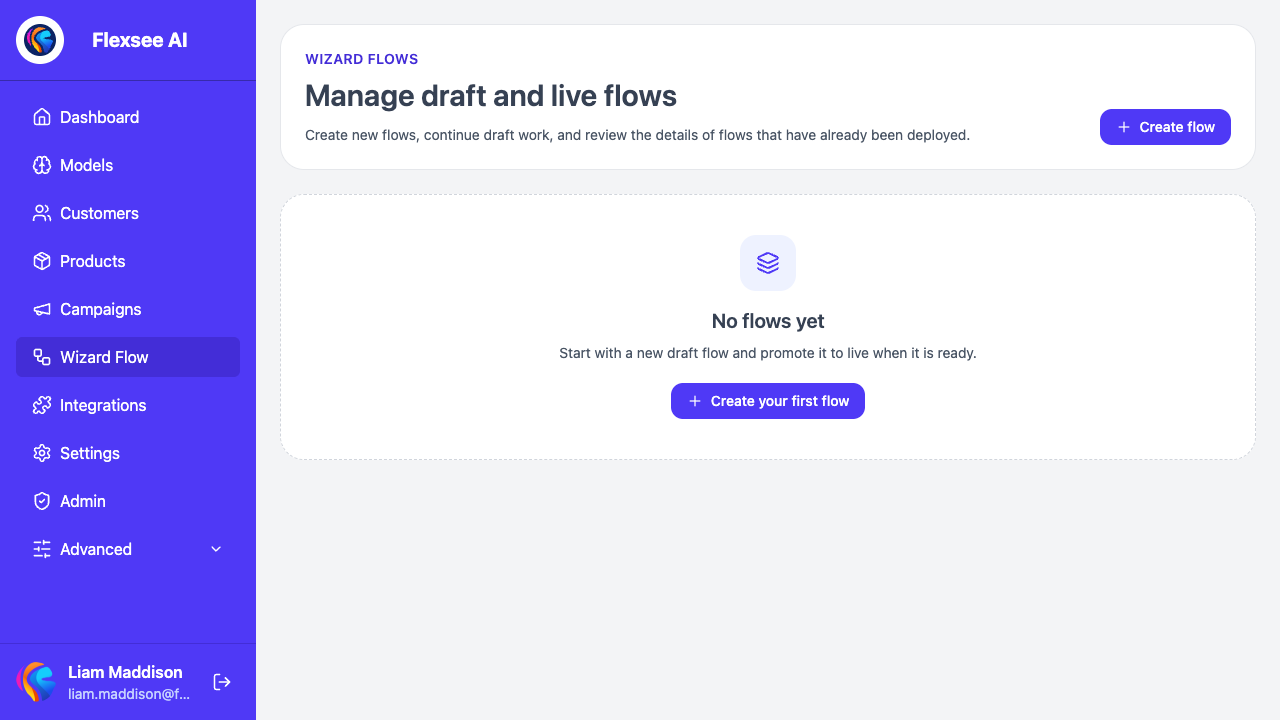
- From the behavioral events card, click Open Campaign Flow, or open Campaign Flow (
/campaign-flow) from the sidebar. - Create or continue a flow. On data source readiness, confirm Shopify is selected and passes checks that depend on sync plus event volume.
- Choose a product and destination (Klaviyo, Meta Ads, Mailchimp, Quick Pay, or other connected channels) as your campaign requires.
- Continue into audience targeting. Flexsee prepares recommendation audiences inside the flow from connected store data — including behavioral events when they are available.
Campaign Flow is the activation surface. The pixel’s job is to keep storefront intent flowing so audiences and product rankings stay current as shoppers browse.
Troubleshooting
Pixel status stays “not installed” after Enable pixel
Confirm the Flexsee app is installed on that exact .myshopify.com domain, then use Re-connect to refresh OAuth scopes and click Enable pixel again. If Shopify returns that no web pixel exists for the app, enable from Flexsee once more after reconnect. Staff without integrations:connect will not see the enable control.
Pixel status is “unknown”
Unknown usually means Flexsee could not read pixel status from Shopify (temporary API error or odd GraphQL response). Refresh the page, confirm the store is still connected, and try Enable pixel again. If it persists, open Open Admin, verify Customer events still lists Flexsee AI Predictions, then reconnect the store in Flexsee.
Event count does not move
Most often the mode is not Always on, the wrong storefront domain was browsed, or an ad blocker / privacy extension blocked the pixel in your test browser. Try a clean session, confirm Pixel connected, generate a few product views, and wait a minute before refreshing Flexsee. Catalog sync alone will not raise the behavioral event counter.
Campaign Flow still says the store is not ready
Check both layers: sync counts on the store card (Products, Orders, Customers) and the Behavioral events for Campaign Flow bar when it is shown. Sparse new stores may need a short burst of real storefront traffic after pixel enable. Then reopen Campaign Flow rather than managing models manually.
Frequently asked questions
Is the Flexsee pixel the same as the Meta Pixel?
No. Flexsee AI Predictions is Flexsee’s Shopify app web pixel. It sends behavioral events to Flexsee for Campaign Flow recommendations and audiences. Meta Ads connection and Meta Pixel IDs are a separate marketing destination path under Integrations → Marketing Destinations. You can run both; this guide is only about the Flexsee Shopify pixel.
Do I need ten events every day?
The 10 minimum gate is the early readiness threshold shown on the Shopify integration page before Campaign Flow can prepare recommendations automatically. After you are past that threshold, keep the pixel installed so ongoing views and carts continue to enrich predictions. You do not reset a daily quota in the UI for that first gate.
What if I only care about email or Meta and not “tracking”?
Campaign Flow destinations still benefit from storefront intent. Email audiences and Meta retargeting or prospecting paths are stronger when Flexsee sees recent product engagement, not only historical orders. Enabling the pixel is the setup step that makes that possible without CSV exports.
Will enabling the pixel change my storefront theme?
The Shopify app web pixel runs through Customer events, not a theme Liquid snippet you paste by hand. You still need Always on in Customer events. Theme edits are not part of the Flexsee enable flow.
Do I need to train a model after the pixel is on?
No. Merchants use Campaign Flow. Flexsee prepares recommendation audiences from the connected Shopify store (sync + behavioral events) as part of the flow. Do not treat Models, Build Model, or manual retrain as a prerequisite for this setup.
Conclusion
You now have the Flexsee Shopify behavioral path in place: store connected, Flexsee AI Predictions pixel enabled, Customer events set to Always on, and enough storefront events for Campaign Flow readiness. That keeps recommendation audiences tied to live browsing behavior instead of catalog sync alone.
Comments