How to use Shopify ecommerce predictions in Flexsee (2026 guide)
Connect Shopify, start Wizard Flow, and let Flexsee surface product-to-users predictions automatically — then activate Meta or Klaviyo campaigns from the same flow.
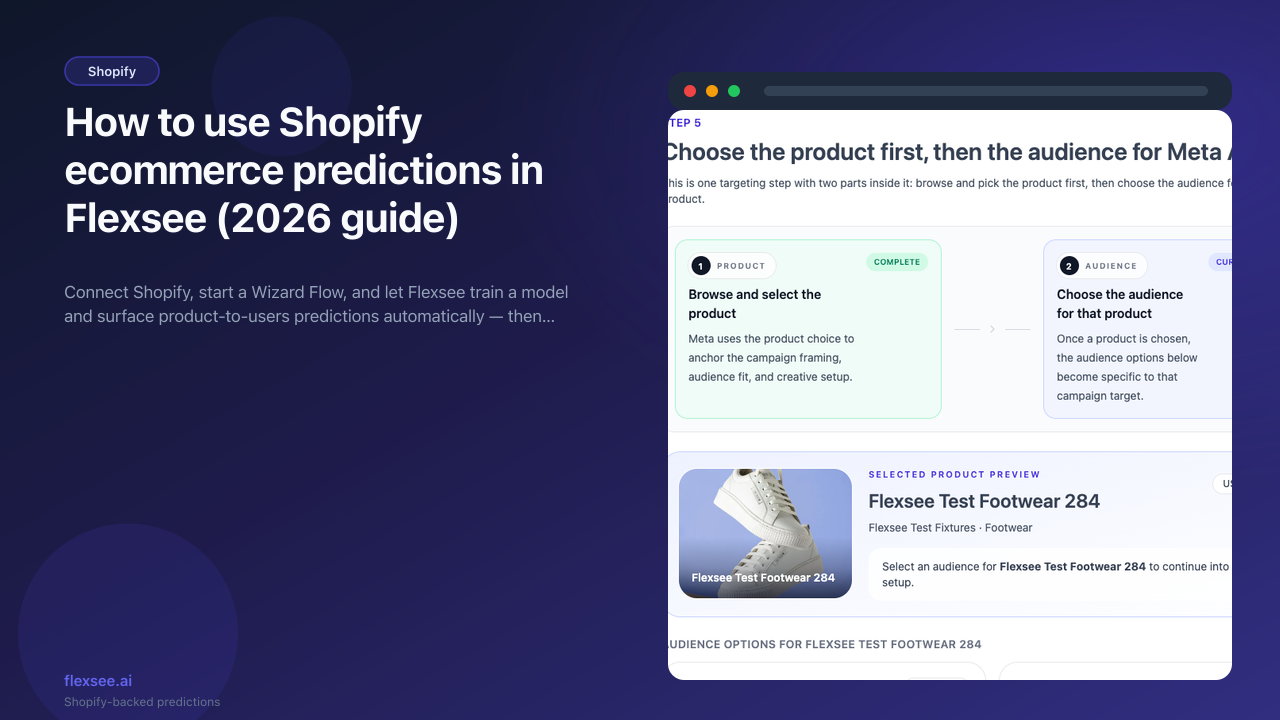
Generic “customers who bought X” segments miss the shoppers who have not purchased yet but are predicted to — that gap is where margin lives for Shopify brands in 2026. Flexsee’s recommended path is Wizard Flow: connect Shopify once, pass readiness checks, pick a product and destination, and Flexsee prepares recommendations for you during targeting.
This guide walks through that flow end to end, then shows where to double-check scores on Products and Customers before you activate Meta or Klaviyo. For a recommendations-focused walkthrough (channel choice and activation paths), see How to add AI product recommendations to your Shopify store in Flexsee.
What you’ll accomplish
- Shopify synced under Integrations → Datasources with catalog, orders, customers, and pixel events
- A Wizard Flow draft that passes Readiness (connection, initial sync, and 11+ behavioral events)
- Recommendations prepared automatically when you reach Targeting
- Product-to-users audience cards for a chosen SKU — ranked shoppers with persona labels such as Ready to Buy
- Optional validation on Products → Audience and Customers → Predictions using the same API
- A campaign-ready flow for Meta Ads, Klaviyo, Mailchimp, or Quick Pay
Prerequisites
Before you begin, make sure you have:
- A Shopify store with products, orders, and some storefront traffic
- A Flexsee account — see How to connect Shopify and Flexsee in 10 minutes if Shopify is not connected yet
- Flexsee AI Predictions pixel enabled (Integrations → Datasources → Shopify → Enable pixel) and set to Always on in Shopify Admin
- At least 11 behavioral events on the store card (browse the storefront to generate page views and product views)
Connect Meta or Klaviyo only when you are ready to finish Destination setup and activate.
Step 1 — Connect Shopify and confirm sync
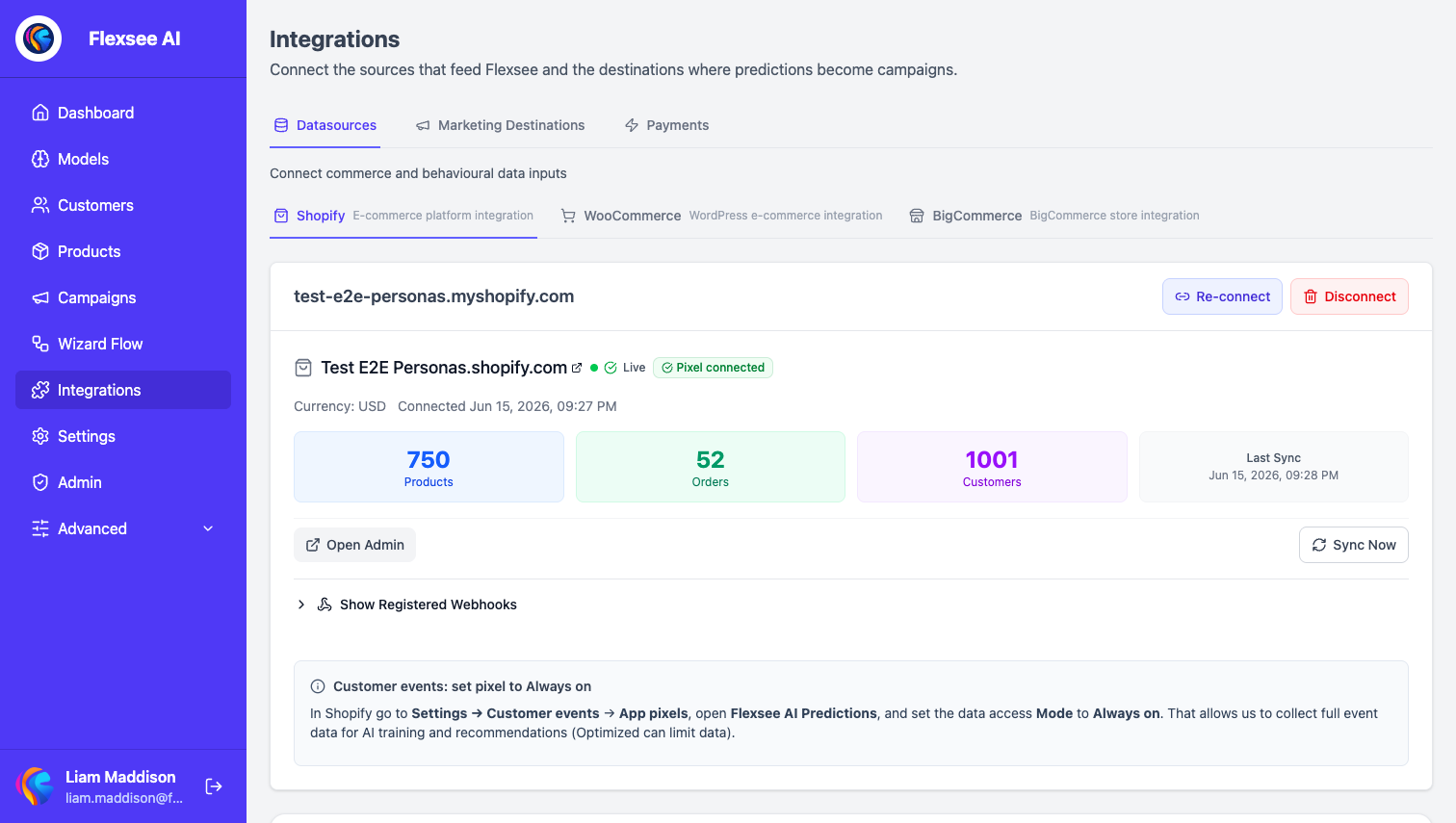
In this step, you will confirm Flexsee has the data predictions need.
- Sign in to the Flexsee dashboard.
- Open Integrations → Datasources → Shopify (
/integrations/datasources/shopify). - Verify your store card shows Synced with non-zero Products, Orders, and Customers.
- Confirm behavioral events show enough activity for recommendations. If not, browse your live storefront while logged out.
Synced orders and pixel events together feed the recommendations Flexsee prepares inside Wizard Flow. More history generally improves early ranking quality.
Step 2 — Create a Wizard Flow and pass readiness
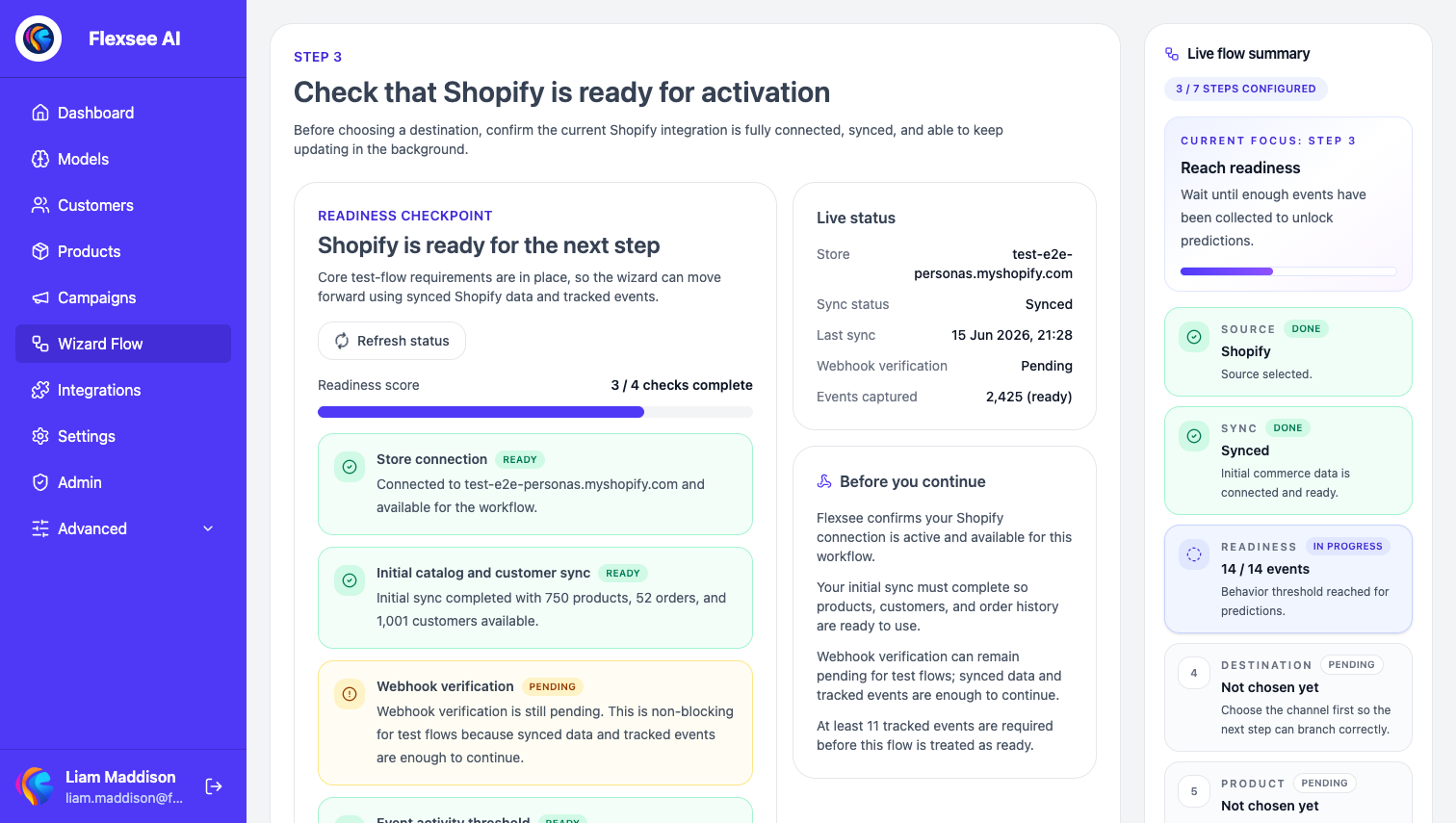
In this step, you will open the guided flow and confirm Shopify is ready for predictions.
- Open Wizard Flow (
/wizard-flow) and click Create flow. - On Data source, select Shopify.
- On Connect and sync, confirm your connected store and wait for the initial import to finish if it is still running.
- On Readiness, wait until core checks pass:
- Store connection — active and not in error
- Initial catalog and customer sync — completed with product, order, and customer counts
- Webhook verification — verified or pending (pending is OK for test flows on Shopify)
- Event activity threshold — 11+ events captured
- Continue to Destination once readiness shows your store is ready for the next step.
Readiness is the gate. Flexsee uses synced Shopify tables and tracked events from here forward.
Step 3 — Pick a product and generate predictions
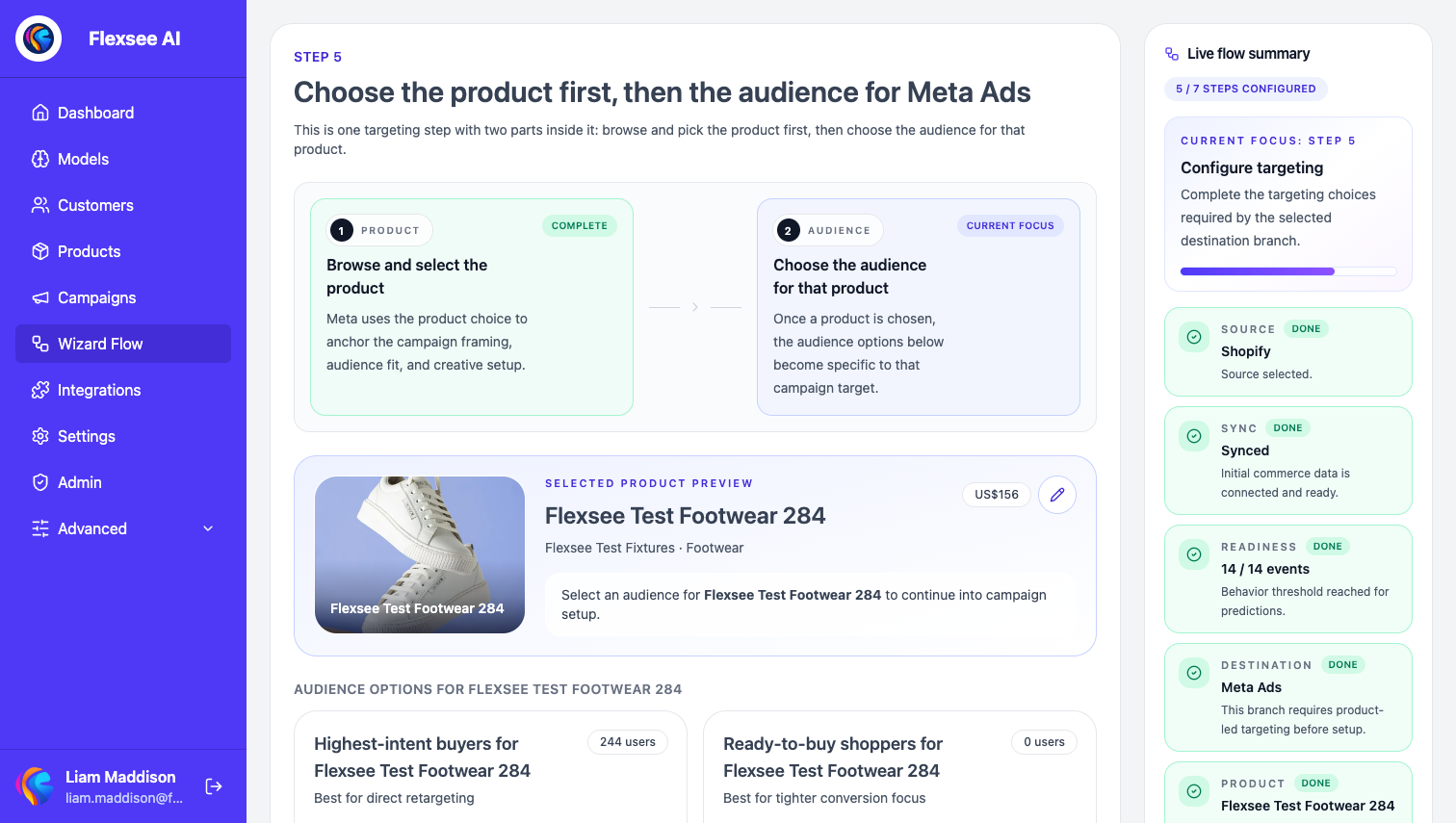
In this step, Flexsee prepares recommendations and scores shoppers for a specific product.
- On Destination, choose where predictions should deploy — Meta Ads, Email & SMS (Klaviyo), Mailchimp, or Quick Pay.
- On Targeting, select a product from your synced Shopify catalog.
- If recommendations need time to prepare, stay on the step until status moves to Generating audience.
- When ready, Flexsee displays product-to-users audience options for that SKU — ranked shoppers with scores on a 0–5 scale shown as purchase propensity percentages.
- Persona labels such as Ready to Buy, Serious Shopper, and Considering Purchase group score bands (for example, scores ≥ 4.0 map to Ready to Buy). Pick the segment that matches your campaign goal.
- Continue through Destination setup (Meta budget and creative, Klaviyo flow and subject line, etc.) and Activate when review is complete.
This is the primary prediction workflow in 2026: one path from Shopify data to scored audiences without exporting CSVs to Ads Manager or Klaviyo.
Step 4 — Validate product → users scores (optional)
In this step, you can inspect the same prediction on a product profile outside the wizard.
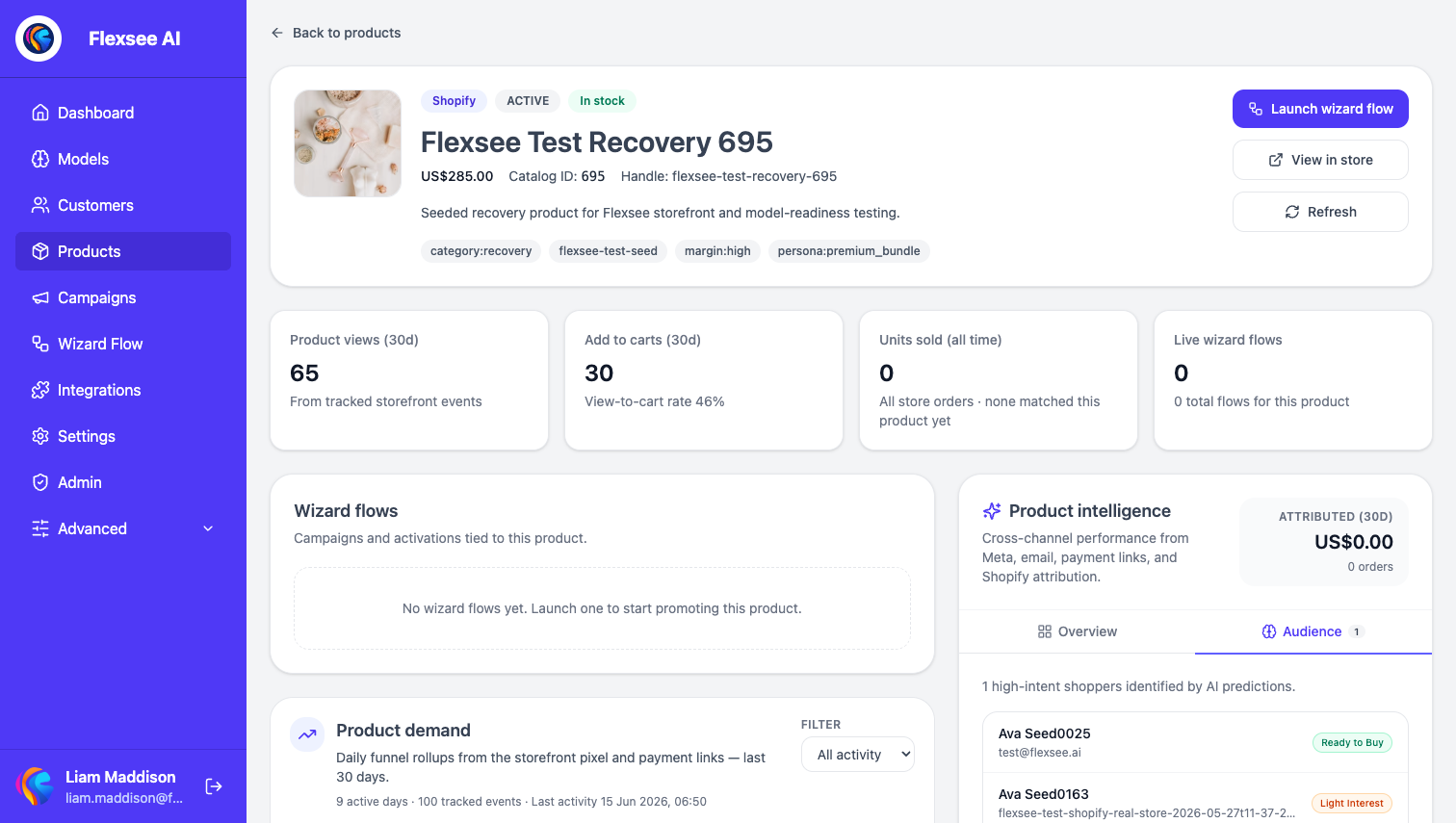
- Open Products and select a product (
/products/:id). - In Intelligence, open the Audience tab.
- Flexsee runs the same product-to-users API used in Wizard Flow — ranked users with propensity percentages and persona labels.
Use this when merchandising or CS wants to see “who should we nudge toward this SKU?” without opening an active flow.
Step 5 — Validate user → products scores (optional)
In this step, you can inspect next-best products for an individual customer.
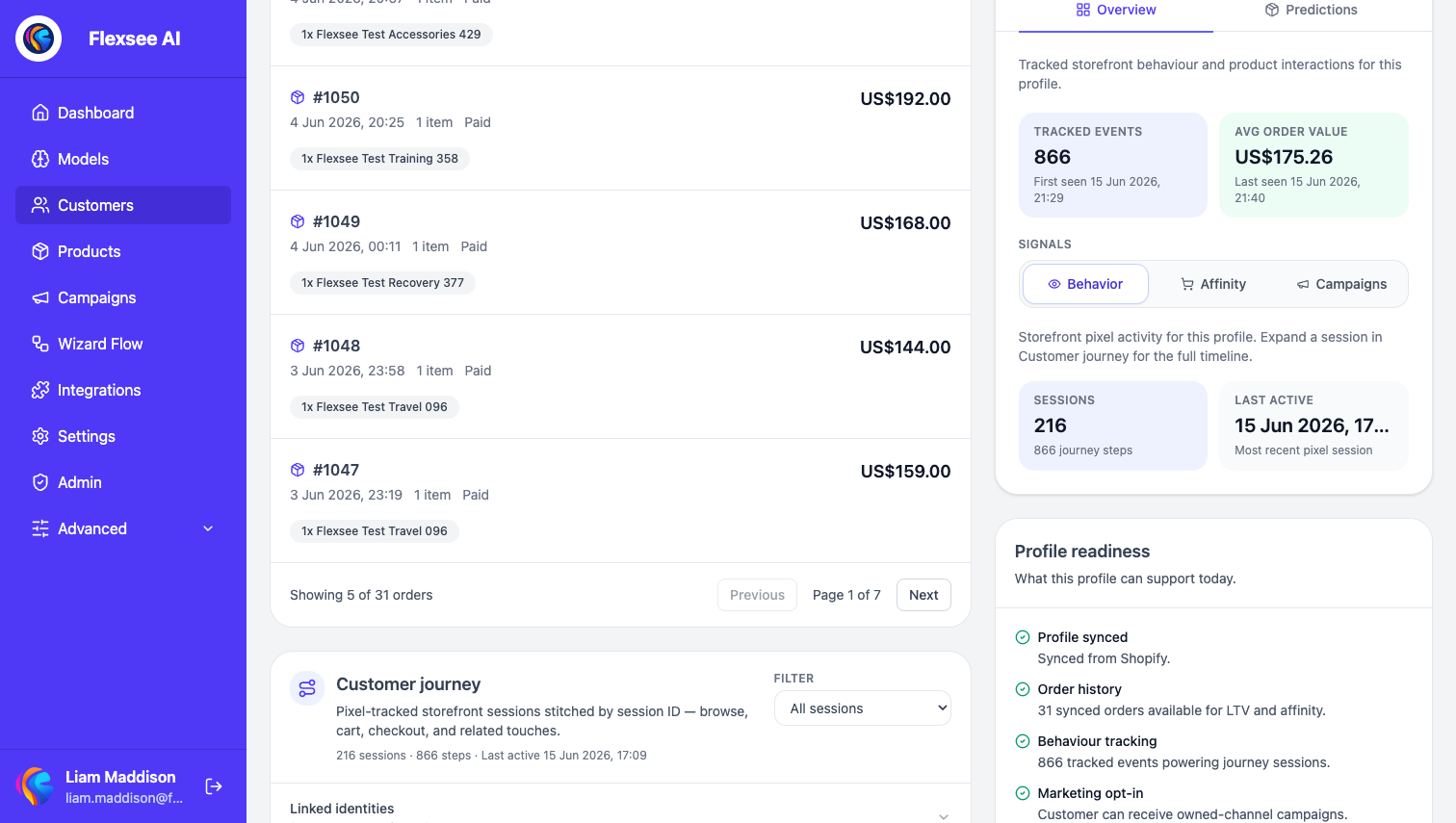
- Open Customers and select a profile (
/customers/:id). - In Intelligence, switch to the Predictions tab.
- Flexsee lists ranked products with confidence (High, Medium, Low) and recommendation labels from the same Wizard Flow recommendation signal.
This is the signal Wizard Flow uses for Klaviyo Campaign Send — per-recipient product blocks instead of one generic bestseller list.
Troubleshooting
Readiness stuck below 11 events
Browse your storefront (product pages, add to cart) with the pixel enabled. Refresh Readiness or the Shopify integration page until the event count climbs.
Targeting takes a long time
Preparation time depends on catalog size and queue load. Leave the wizard open — it polls until recommendations are ready, then generates the audience.
Audience tab shows “Could not run AI predictions”
Return to Wizard Flow → Targeting and retry after confirming the store sync is complete and behavioral events are available. If the catalog changed significantly, run a fresh sync from the Shopify integration page.
Wizard Flow blocks activation
Open the flow’s error message — common blockers are a disconnected Meta or Klaviyo integration, Meta Custom Audience terms not accepted, or an incomplete Destination setup step.
Frequently asked questions
Do I need a separate setup step before Wizard Flow?
No for the merchant-facing path. Wizard Flow prepares recommendations during Targeting, so you can start and finish from the flow.
What Shopify data does Flexsee use?
Products, orders, and customers sync via the Shopify app. Flexsee AI Predictions pixel events (page views, product views, cart, checkout) enrich recommendations. No CSV export or data warehouse is required.
How is a prediction score interpreted?
Scores use a 0–5 interaction-strength scale; the UI converts that to a 0–100% propensity percentage. Personas group those percentages for marketers — they are not guaranteed conversion rates.
Can I use predictions without activating a campaign?
Yes. Products → Audience and Customers → Predictions are useful for merchandising insights. Wizard Flow is how you activate the same scores in Meta, Klaviyo, or Quick Pay.
Conclusion
Shopify ecommerce predictions in Flexsee start in Wizard Flow: sync → readiness → destination → targeting with automatic product-scoped audience scores. Products and Customers show the same intelligence for validation; activation stays in the wizard so you do not rebuild audiences in each channel manually.
Comments